Happy New Year! Forget all that stuff about the Mayan Calendar. Be Cool!

Latest Reviews & Tutorials

  • How to make DuckDuckGo the default search engine in Chromium
  • How to customize Linux Mint 12 KDE
  • Linux Mint 12 KDE review
  • GhostBSD 2.5 review
  • How to install Takeoff Launcher on Fedora 16 KDE
  • Install Quick Access on Linux Mint 12 KDE or any KDE installation
  • How to install Linux Mint 12 KDE on a btrfs file system
  • Manual disk partitioning guide for Linux Mint 12 KDE
  • How to compile and install Takeoff Launcher on Linux Mint 12 KDE
  • 3 must-have extensions for Fedora 16 and other GNOME 3 installations
  • How to install Razor-qt on Linux Mint 12 KDE
  • How to enable desktop slideshow on Linux Mint 12 KDE
  • KahelOS 111111 review
  • How to install Cinnamon in Ubuntu 11.10
  • How to customize Cinnamon on Fedora 16 and Linux Mint 12
  • How to install Cinnamon on Fedora 16
  • What does Cinnamon bring to the desktop?
  • How to access Microsoft Windows files and folders from Linux
  • How to dual-boot Pear OS Panther 3 and Windows 7
  • How to dual-boot Chakra Linux Edn and Windows 7, part 1

Linux Mint 6 Installation with Custom Disk Partitioning


I am reading page: 1 2 3

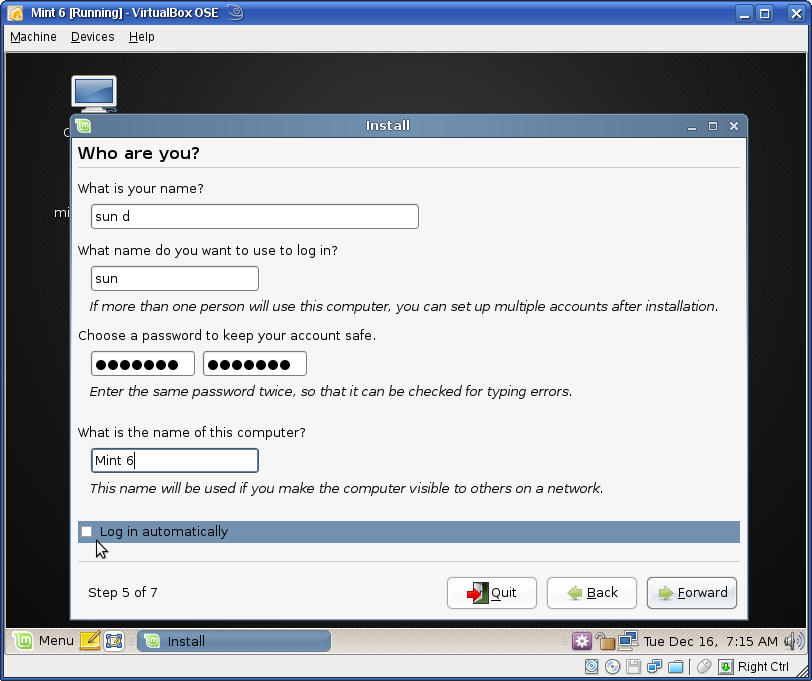
At this step, you have to create a user account. Linux Mint, like Ubuntu and other Ubuntu-based distros, does not use the root user account for access to admin rights. Rather, the account you create here is an “admin” account, and can perform any admin tasks on the system.

We recommend that you do not enable the “Log in automatically” option. It is best to manually type in your username and password than be logged in automatically. This way, you ensure that no one will physically gain access to your your PC just by rebooting it.
create user account

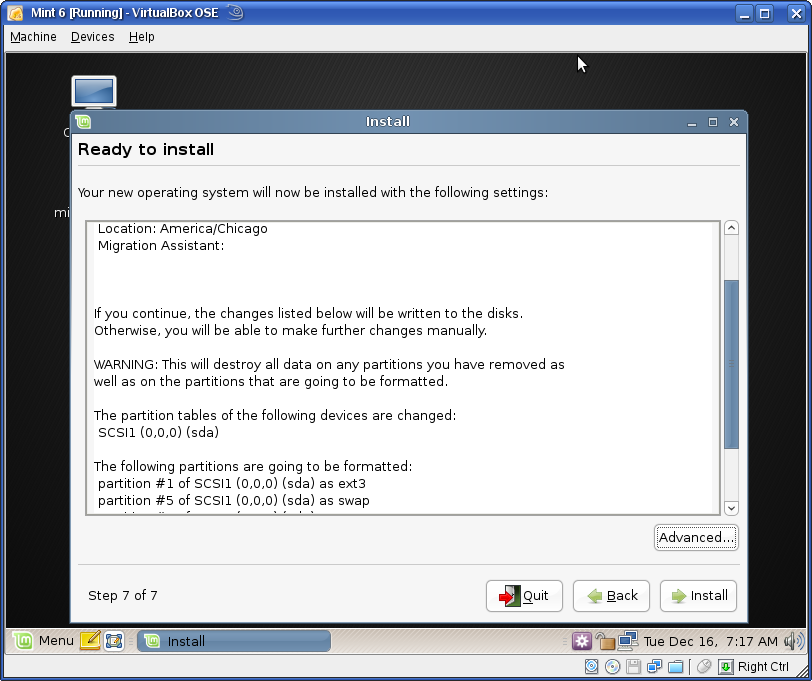
Here you review your settings before they are committed to the system. But before you click the Install button, let’s review a few more options under Advanced. Click on the Advanced button.
review installation settings

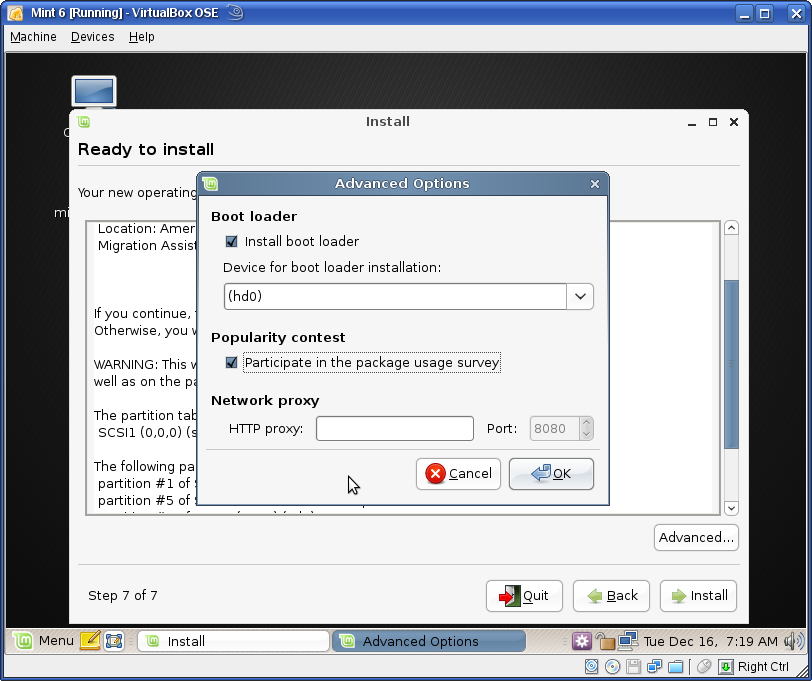
From this screen, you can choose where you want the boot loader to be installed. By default, the system installs the boot loader in hd0, or in the Master Boot Record (MBR). Unless you know what you are doing, stick with the default. I always choose to participate in the package survey. By default, this is off. Be a sport and participate. Click OK.
bootloader options

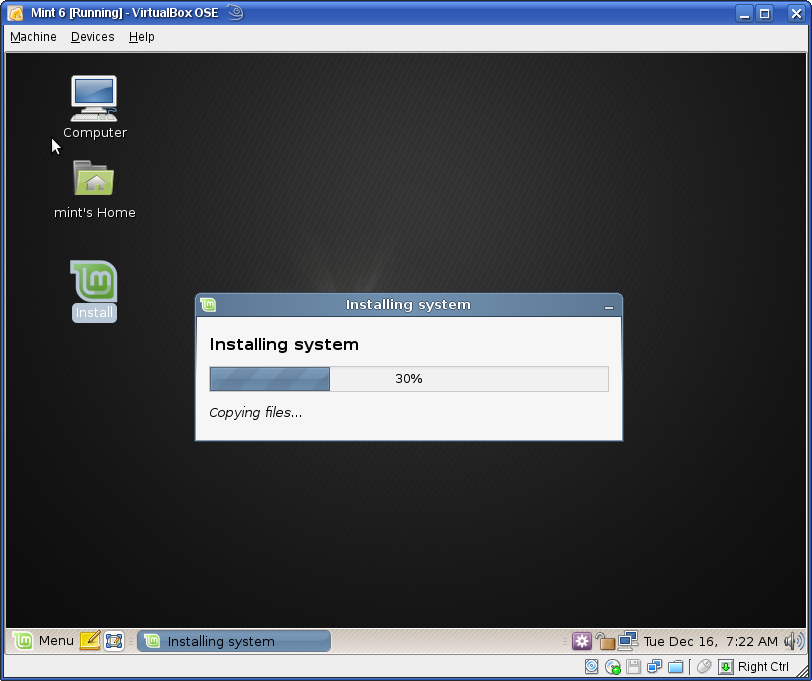
Now when you click the Install button, you can sit back, reach for that cup of latte and watch as your system is installed.
Installation progress

0saves
To have articles like this delivered automatically to your Feed Reader or Inbox, subscribe via RSS or email. For simple comments, use the commenting system, but for more involved assistance, please use the Question & Answer section.
I am reading page: 1 2 3

Posts From The Same Category:


Questions & Answers Hola! Looking for an answer to a question but did not find it? Then surf on over to the Questions & Answers section. It's a brand new addition to our site, and we are waiting just to answer your question(s).

2 Comments

  1. Jonathan says:

    Thank you mate, used this excellent easy to follow guide for Mint 7 and have now just used this to install Linux Mint 9 on my daughters pc.

  2. radu says:

    i just want to thank you,……

Leave a Reply

Trackbacks

  1. Trying out Mint 6.0 - « My Linux Box Log
Read previous post:
Linux Mint 6 Released
Elisa 0.5.22 Released
FSF Files Suit Against Cisco For GPL Violations
Close