OpenSSH is a free implementation of the SSH protocol. It is developed by the OpenBSD team, and provides secure replacements for rlogin, telnet, and ftp. By default, only the client is installed on Linux Mint 6. To install the server, follow these simple steps.
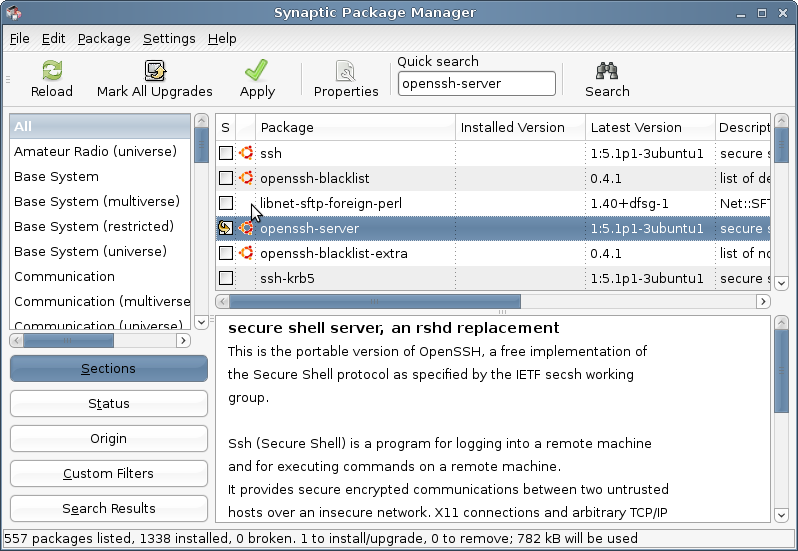
Launch Synaptic, the graphical package manager, from the menu tree and type in openssh in the search bar. Scroll down to find the entry for openssh-server, click on the check box next to it and select Mark for installation.
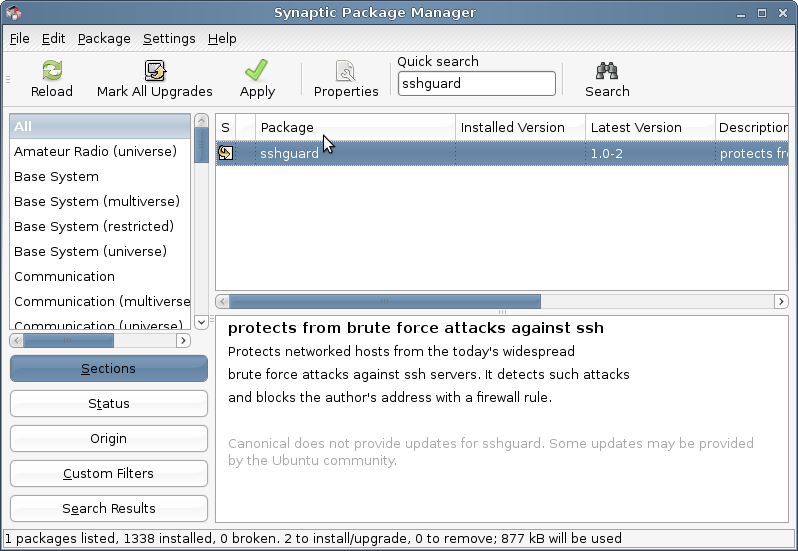
Before you apply changes and install the OpenSSH server, let’s install something else, something that will protect the OpenSSH server from brute force attacks. This is sshguard. It does its job detecting brute force attacks against ssh servers, and blocking the offending IP address with a firewall rule. To install it, type sshguard in the search bar of Synaptic and mark it for installation.
Now, click Apply to install both selections, that is, OpenSSH server and sshguard. When installation is complete, you should see an entry for ssh under the /etc/init.d directory. It should already be running, but you may confirm by typing /etc/init.d/ssh status on the command line.
You may also confirm by launching the Services Settings graphical tool from the menu tree – Administration > Services. There should be an entry for ssh.

With the OpenSSH server installed and running, you can now connect to your Linux Mint box from other computer on your network using an OpenSSH client.