

 PCLinuxOS is a Linux distribution based on Mandriva Linux. The most recent update, and the first since the last update in 2007, was released last week. This review will be the very first review of PCLinuxOS on this site.
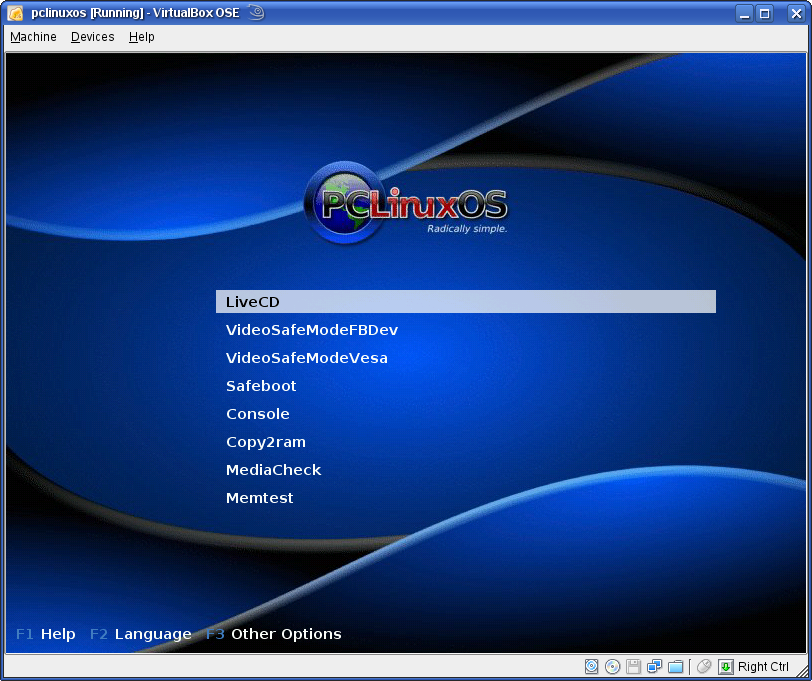
Installation: The installation media of PCLinuxOS boots into a Live, KDE desktop environment. There is no option on the boot screen to install to hard disk without first making a stop at the Live desktop environment. I think there should be that (install to hard disk) option, for users who already know that they want to install the OS to disk. If nothing else, it saves time.
The installer is essentially the same as the old Mandriva installer, minus support for Linux Logical Volume Manager (LVM) and RAID. It allows for the encryption of disk partitions, although only the partition for the /home directory can be encrypted.
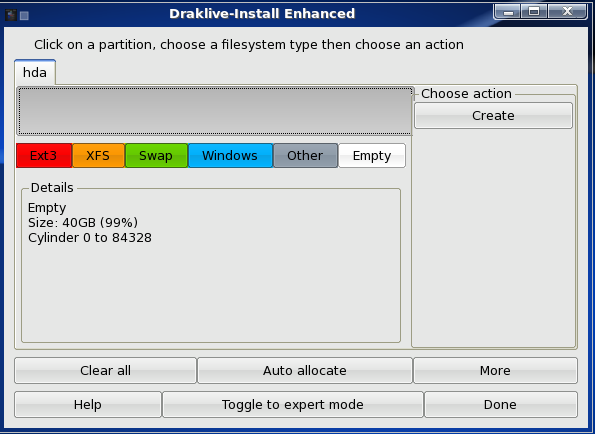
There is a “normal mode” and an “expert mode” of installation. If you choose to operate in the normal mode (recommended for non-experts), and click on the Auto allocate button, the installer will create three partitions: One partition of about 8 GB for the root directory, another for swap (about 4 GB), and the last for the /home directory. The last partition for /home gets the rest of the available space not allocated to / and swap.
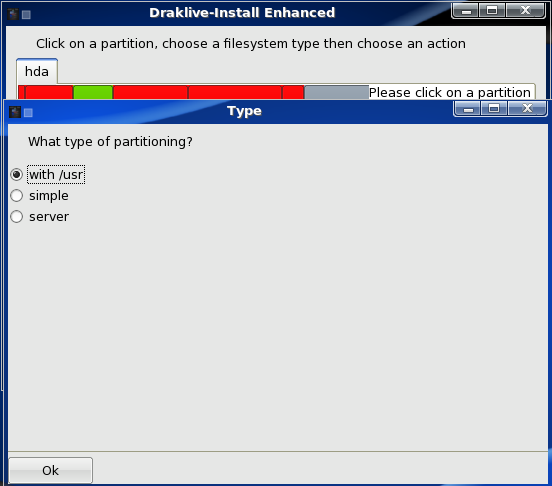
If you toggle to expert mode and click on the Auto allocate button, the installer presents three partitioning schemes to choose from:
- with /usr – choose this option (the default – in expert mode), and the installer will create separate partitions for /, the root directory, swap, /home, and /usr.
- simple – here, the installer creates the same partitions that it would create if you clicked on the Auto-allocate button in normal mode.
- server – choosing this option prompts the installer to create separate partitions for /, swap, /usr, /var, /tmp, and /home.
The problem with the Auto allocate option in expert mode is that the installer allocates too much disk space to the /var and /tmp partitions, and I think also for swap. You may end up having to resize the partitions before proceeding with the rest of the installation, or you could avoid the hassle and perform a manual partitioning. If you are new to disk partitioning on Linux and you want to do it right, watch the space for a detailed tutorial on how to create a custom partitioning scheme on PCLinuxOS.
Expert mode Auto allocate options
For a bootloader, the default is GRUB (GRand Unified Bootloader), with LILO (LInux LOader) as the alternate.
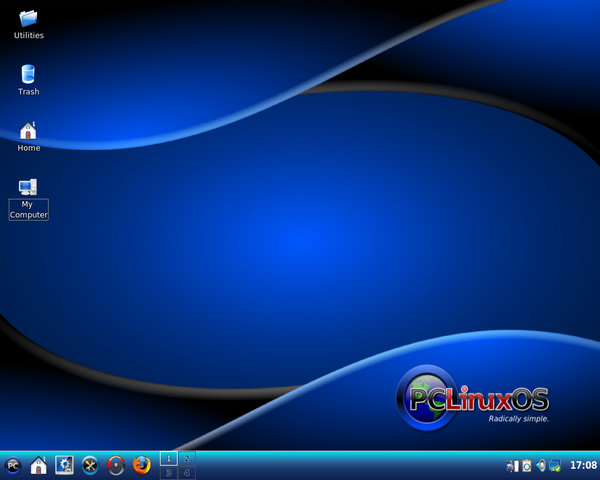
Desktop: The default desktop environment is the K Desktop Environment (KDE). Other desktops are also available for installation. PCLinuxOS sports one of the ugliest desktop background I have ever seen. I wonder who made the decision to make that the default, given that there are better desktop background images in the system.
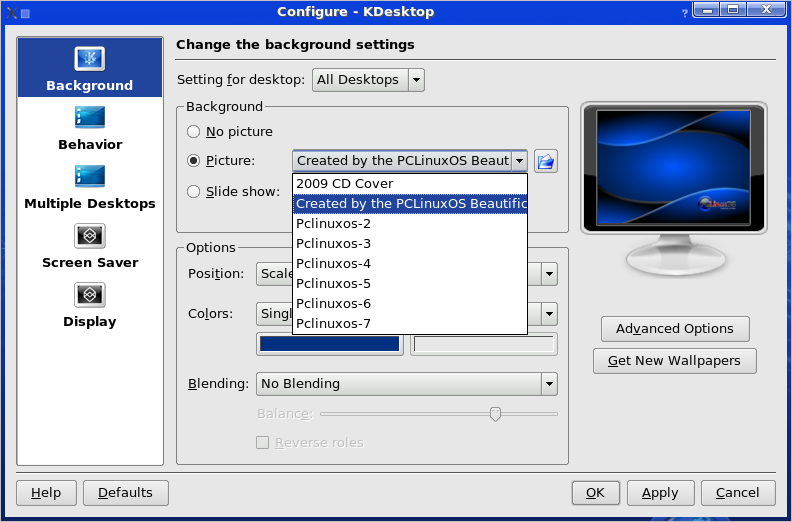
The first thing most people will likely do after installation is change the desktop background image. Very easy to do, but if you are new to Linux, here’s how it’s done: Right-click anywhere on the desktop, and select “Configure Desktop”. Click on the top dropdown select box, and you will see the other desktop background images available. Any one of those listed is much more visually appealing than the default. Click Apply to see the new desktop background, or just click OK if you are satisfied with your choice
Default Installed application:PCLinuxos 2009.1 comes with a decent, not great, selection of applications. It’s better than Zenwalk Linux in this regard, but comes in way behind Sabayon Linux. Here is a sampling of some the applications you will find on a default installation (of PCLinuxOS 2009.1):
- OpenOffice.org
- GNU Image Manipulation Program, a graphics application
- Kopete, a multiprotocol IM client
- Mozilla Firefox and Konqueror Web browsers
- Amarok, probably the best music playing application around
- digiKam, for photo management
- Kaffeine and MPlayer video players
- DeVeDe, a DVD/CD video creator
As with any other Linux or BSD distribution, there are many more applications in the repositories, which you can install using the package manager.
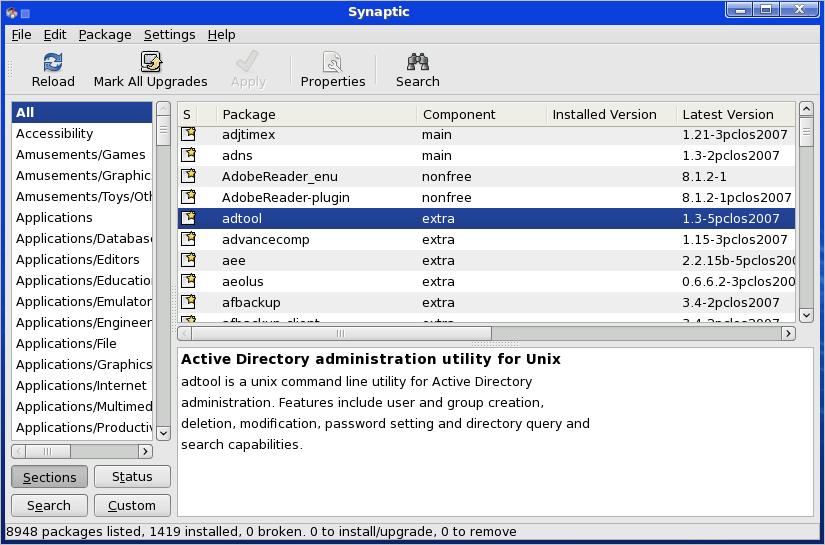
Software Management: PCLinuxOS is an APT-ified, rpm-based distribution. What that translates into is that at the command line, apt-get, widely regarded as the best package management application, is your friend. For those with a command-line phobia, Synaptic, the GTK-based graphical interface to apt-get is available.




PCLOS is failure when it come to supporting mobile broadband. I had a huawei ec325 modem which cannot be configured in PCLOS. I posted it in PCLOS official forums. I was not able to solve the problem. I regret my decison to switch to PCLOS. That decision was not a wise one. as my USBmodem worked flawlessly in ubuntu, linux mint and fedora.
if there is a hardware failure with the distro it can be kicked out. now i use ubuntu. i am not blaming any distro by this. i just want my devices to work in a distro.no matter which name it is. for the time being it works well in ubuntu. So naturally Ubuntu is my choice. i hopped back to ubuntu
After seeing this same posting on every blng entry I found about PCLinuxOS, I have to say it sounds like an Ubuntu fanboy who just wants to give PCLinuxOS a bad name.
Sorry you weren’t smart enough to test out your modem in the live CD before installing. “dalfish”, but hey. PCLinuxOS can’t help you with *that* little problem.
of course pclinuxos is stable why? because its always 2 steps behind, in this day and age where we have kde 4 they still choose to release their distro with kde 3.5, i think however that they have a kde4 release on the horizon