

 So you are now using Ubuntu 9.10, the latest version of the Linux operating by Canonical Ltd. I’m sure you like it. Life is good with Ubuntu! It really rocks, lots of features. But you know that there is always one or two things missing or not properly configured. In the case of Karmic Koala (that’s the other name of Ubuntu 9.10), there are more than one or two things missing.
For one, the NTP package is not installed by default. Two, Mozilla Firefox, the browser that’s kicking Microsoft’s Internet Explorer in the groin, does not “speak” Java. Three, a graphical firewall client is missing. And four, the openSSH server is not installed.
How to install a graphical firewall client has already been taken care of. Now we are down to three. So let’s fix these missing parts – one by one.
Let’s follow this order:
1. Install and configure NTP (this page)
2. Install Java JRE (this page)
3. Install the openSSH server, and punch a hole in the firewall (next page)
Ready? Let’s go!
1. Install and configure NTP – NTP, Network Time Protocol, is the protocol that enables a networked device to sync its clock to national standard time. That is another way of saying that NTP allows your computer to sync its clock to that of a remote NTP server. A remote NTP server could be Primary (Stratum 1) or Secondary (Stratum 2). Stratum 1 servers sync their clock to national time standards via radio, satellite and modem while Stratum 2 servers sync to Stratum 1 server(s).
With NTP installed and configured, your Ubuntu 9.10 installation will most likely be syncing its clock to that of a Stratum 2 server somewhere on the Internet. But you do not need to know anything about Stratum 1 or Stratum servers. All you want is for your PC to keep time accurately, all the time.
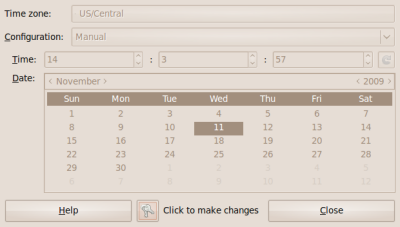
To install and configure the NTP package, click on System > Administration > Time and Date. The Time and Date management utility should appear. Authentication is needed before you cam make changes. Click on the ‘Key’ button in the middle of the bottom section to bring up the password dialog.
Time and Date management utility
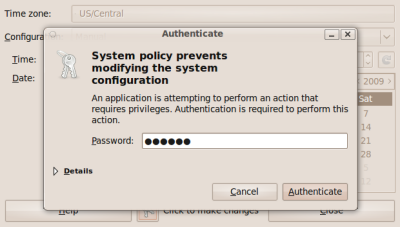
Type in your password and click Authenticate.
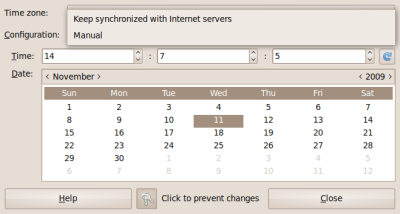
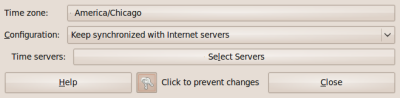
Make sure that your ‘Time zone’ is correct, and click on the Configuration dropdown. Manual configuration is the default. Select ‘Keep synchronized with Internet servers.’
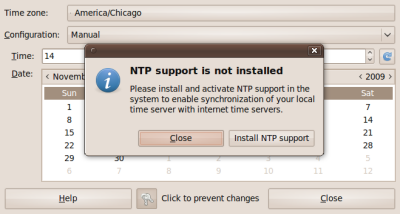
Because the NTP package is not installed, the system will prompt you to install it. Click on ‘Install NTP support.’
After the installation has been completed, you’ll get this window. Now’s the time to select the time servers you want your PC to sync with. Click on the ‘Select Servers.’
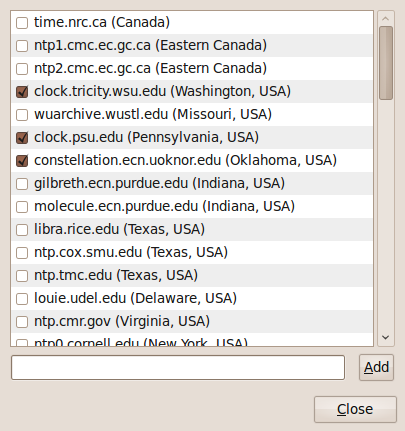
No servers are pre-selected. Mark your choices and click ‘Close.’ Click ‘Close’ again on the next window after this one, and that should do it.
2. Install Java JRE – There are two Java JRE packages in the main repository – openJDK Java 6 Runtime, and Sun Java 6 Runtime. In my test, installing the openJDK Java 6 Runtime did not work. Don’t know why, but it just did not. My only other option was to install Sun Java 6 Runtime, and that worked.
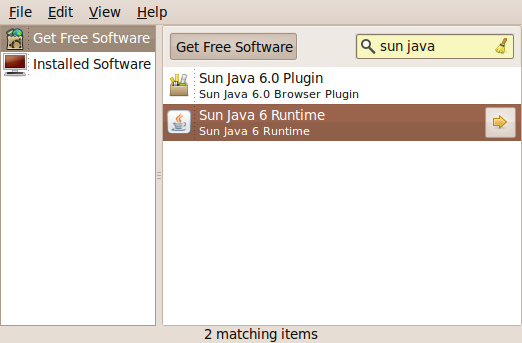
To install it, launch the Software Center (Applications > Ubuntu Software Center), and type in ‘sun java’ in the search box. Select the second line of the search result and click on the arrow at the end.
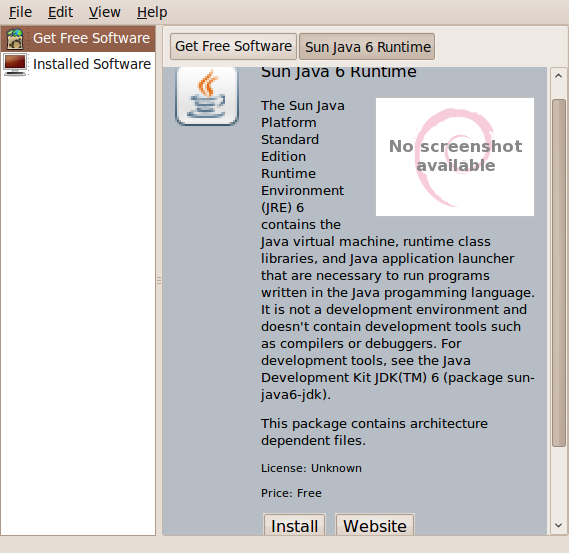
Click on the Install button to begin the installation. The installation will start only after you’ve been authenticated.
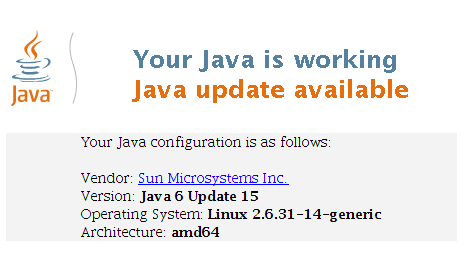
If the installation was successful, go here to test whether Java is working on your computer.
Success!



I can easily install NTP (Network Time Protocol, a means of transmitting time signals over a computer network) using yum command under Redhat or CentOS/Fedora core Linux.