 Simply Linux 5 is a distro from the same team that publishes ALT Linux. The first review of this distro on this site has just been published. This post is to offer some customization tips to those new to Linux and to this distro, and will address the following configuration changes:
- Change system font size
- Point the package manager to a remote repository
- Enable the firewall
- Enable the Network Time Protocol
- Install printer
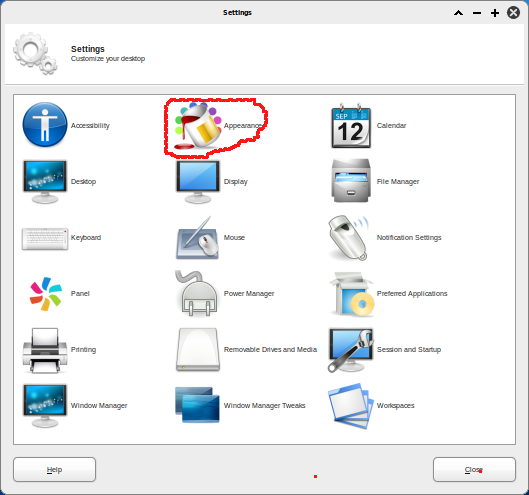
1. Change system font size: The very first modification you’ll have to make to the default configuration of Simply Linux is change the font size. The default system font size is so small that browsing even the menu is a painful exercise – to the eyes. To perform this simple task of changing the system’s font size, launch the Xfce 4 Settings Manager from Menu > Settings > Xfce 4 Settings Manager, then click on the ‘Appearance’ icon.
Xfce 4 Settings Manager
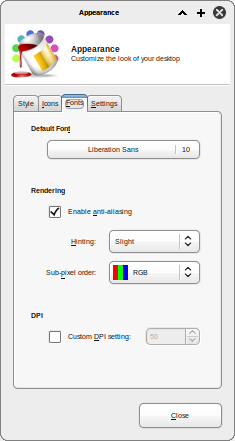
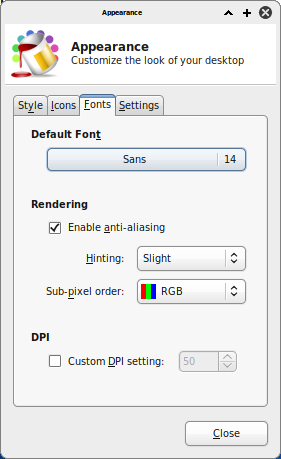
On the appearance window, click on the ‘font’ tab. You can see that the system font size is ‘Liberation Sans 10’. Ten (10) is too small a font size. Change the font type and size to something that suits you. For me, I’m more confortable with ‘Sans 14.’
Default ‘Appearance’ settings
Appearance settings modified. Click ‘Close.’
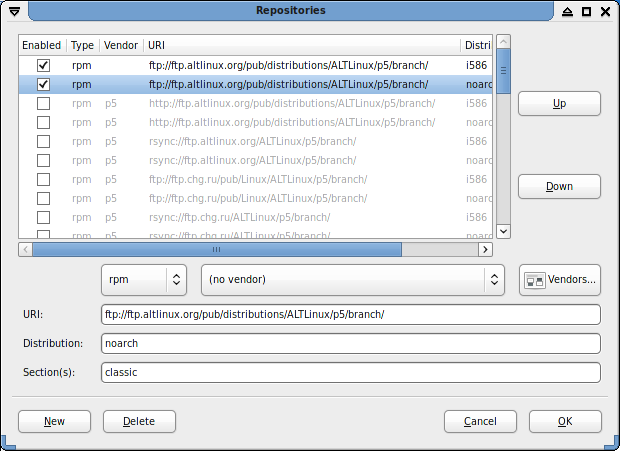
2. Point the package manager to a remote repository: Out of the box, the system is configured to update and install applications from the installation CD. What you really want is to point the package manager to one or two remote repositories. To do that, launch Synaptic, click the ‘Settings’ menu and select ‘Repositories.’
This is the default ‘Repositories’ settings. Uncheck the CDROM line
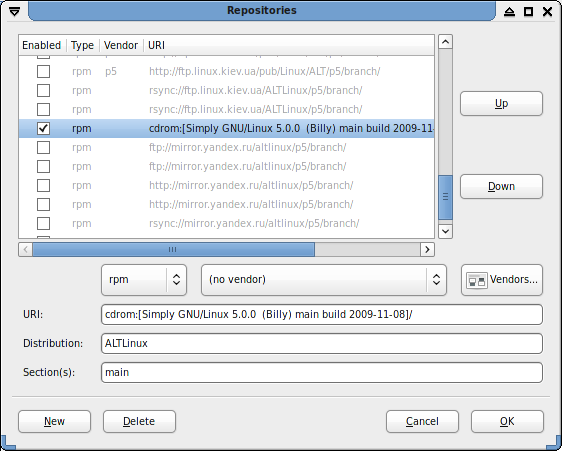
Find two repos lines (it is recommended that you do not select more than two repos) and enable them. Clcik ‘Ok.’
3. Enable the firewall: The steps involved in “>enabling the firewall on Simply Linux 5 are the same as those on ALT Linux 5 Ark Desktop.
4. Enable the Network Time Protocol: The steps involved in “>enabling Network Time Protocol on Simply Linux 5 are the same as those on ALT Linux 5 Ark Desktop.
5. Install printer: The steps involved in adding a printer on Simply Linux 5 are the same as those on ALT Linux 5 Ark Desktop.