
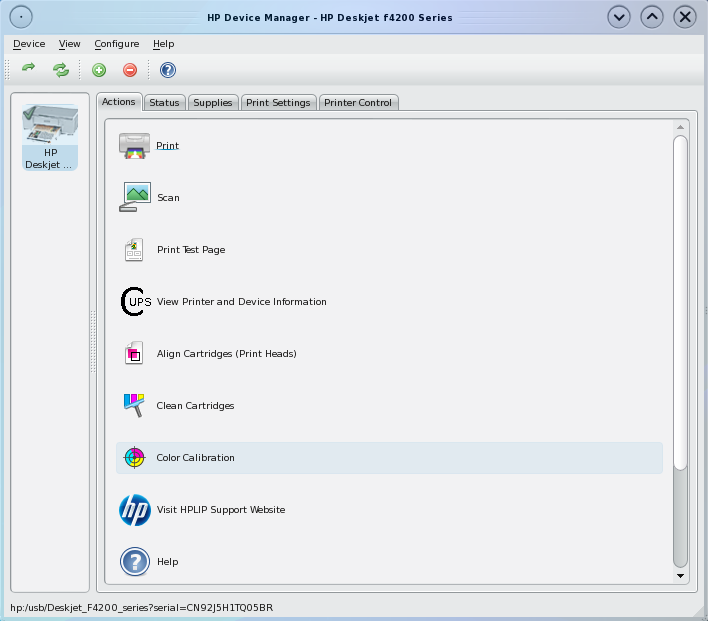
 PC-BSD is a desktop-centric distribution based on FreeBSD. The latest stable version, released just this week, is PC-BSD 8. On most Linux, desktop distributions, a connected printer is automatically configured. On PC-BSD 8, however, getting a printer to work requires manual configuration. To simplify that task, a number of printer management utilities are available. You may access the main printer management interface from System Settings > Printer Configuration, or just launch a browser and type http://localhost:631 into the address bar to access the CUPS Web (management) Interface. If you have an HP printer, the HP Device Manager is also available, accessible from Applications > Utilities > HP Device Manager.
You may also find the following articles useful: PC-BSD 8 review and PC-BSD 8 installation guide.
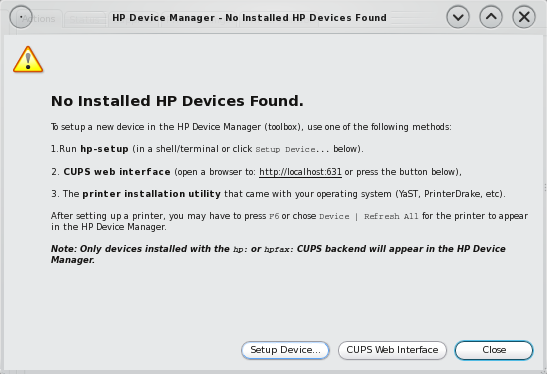
Since the printer connected to my test machine is an HP Deskjet F4280 All-in-One, I’ll be using the HP Device Manager for this tutorial. So, let’s start by launching this tool. The main interface of the HP Device Manager has two buttons that are of interest to us. The first is the “Setup Device..” button, and the other is the “CUPS Web Interface” button. Ignoring all the text above these two buttons, click on the “Setup Device..” button.
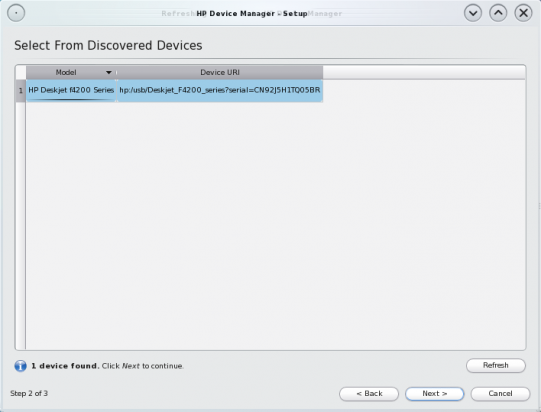
That should bring you to this window, where any (HP) printer connected to the computer will be listed. Make sure that the printer is selected and click on the “Next” button.
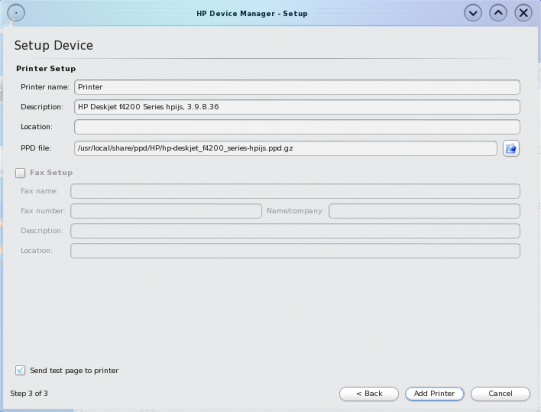
That brings us to the list of printer drivers. Scroll to find the printer driver for your particular printer. Since my printer is an F4280, I selected the hp-deskjet-f4200-series-hpijs.ppd.gz line. Open.

Printer configuration si almost complete. Now all you have to do at this stage is personalize your printer. Give it a name and, optionally, a description. Add Printer.
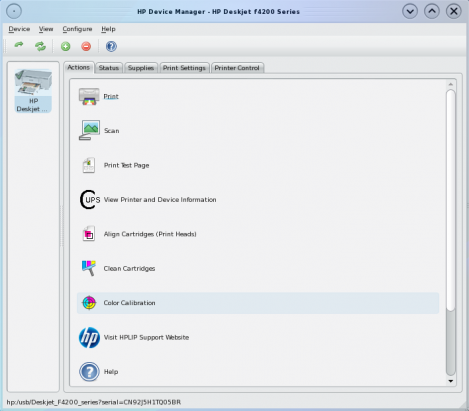
The printer configuration is now complete. It is highly recommended that you print out a test page now to verify that the printer configuration was successful. Following that, click around this window to get used to all the printer management tools at your disposal. When you are satisfied with everything, close this window. An HP icon which allows you to access the HP Device Manager and the printer’s jobs management page will be placed in the system tray.



Nice, but not everyone has an HP and can use an HP config tool. Can you write up some non-brand specific instructions? thx