Latest Reviews & Tutorials

  • How to disable Taskbar Thumbnails in KDE
  • Disk encryption in ROSA Marathon 2012
  • How to dual-boot Ubuntu 12.04 and Windows 7
  • Still in search of that perfect desktop distribution
  • The first thing to do after installing Linux Mint Debian 201204
  • Linux Mint Debian 201204 Xfce review
  • What will ‘rm -rf /’ actually do to your Linux/BSD machine?
  • Linux Mint Debian 201204 MATE/Cinnamon review
  • What’s the point of having 2 scrollbar types in Ubuntu 12.04?
  • Install the latest and greatest Cinnamon desktop on Ubuntu 12.04
  • How to run Linux Mint Debian Cinnamon in VirtualBox
  • Manual disk partitioning guide for Linux Mint Debian
  • Chakra Archimedes-2012.04 review
  • How to install Takeoff Launcher on Kubuntu 12.04
  • Replace Oxygen with ROSA theme on any KDE-powered distribution
  • 5 user-friendly applications you could be using now
  • ROSA Desktop 2012 beta review
  • How to install Jitsi in Fedora
  • Install Jitsi 1.0 in Debian, Linux Mint and Ubuntu
  • 3 minutes with GNOME 3.4 built-in desktop recorder

How to customize Ubuntu 10.04 desktop


I am reading page: 1 2

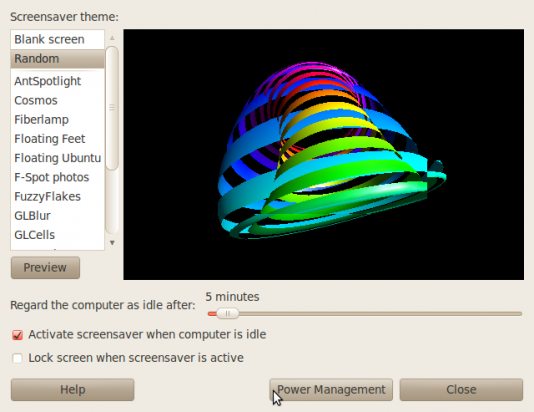
  • Tweak the screen saver and power saving options – By default, the Ubuntu desktop is configured to activate the screen saver and lock the screen after five minutes of inactivity, then put the display to sleep after thirty minutes. For home use, especially if you are the only person at home, this is not necessarily the best setting. To modify the default configuration, access the “Screensaver” utility from System > Preferences > Screensaver.

    The only two changes I like to make here are: Change the screensaver theme from “Blank screen” to “Random,” then uncheck “Lock screen when screensaver is active.” Note that if you use your computer in a public place, or you live with people you do not trust, it’s best to leave these settings unchanged. As a matter of fact, if you are in a public place and you need to step away from your computer for even a few seconds, activate the screensaver manually. If you want to modify the display’s power saving setting, click on the “Power Management” button.
    Screensaver

    Modifying the Screensaver preferences

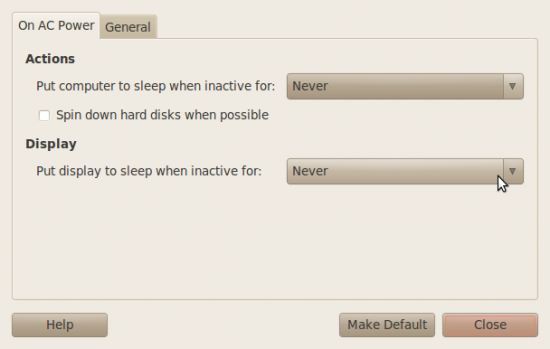
    Clicking on the “Power Management” button brings up this window. You can also access it separately from System > Preferences > Power Management. By default, the display will “sleep” after thirty minutes of idleness. You can change to the other times options or to never. Your choice.
    Power Management

    Power Management settings

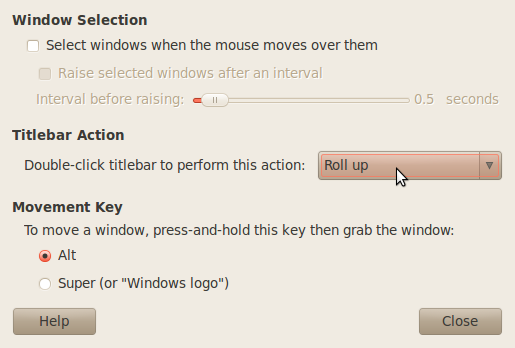
  • Modify window behaviors – When you double-click on the title bar of any window, the default behavior is to maximize it. Since their is a maximize button you can use for this, I always like to shade or roll up a window when I double-click on its title bar. To change this setting, launch the “Windows” utility from System > Preferences > Windows. Under “Titlebar,” click on the drop down menu and select “Roll up.” Close the window. Now when you double-click on the title bar of a window, it will be shaded or rolled up. It’s much cooler than the default behavior.

    Window shading

    Modifying windows behavior when double-clicking on the title bar

  • Modify startup behaviors – I like to have my computer remember the applications that were open before I rebooted, shut it down, or logged out (this is not the same as startup applications). To make this happen, launch the “Startup Applications” utility from System > Preferences > Startup Applications, and click on the “Options” tab. The only option here is to check or enable “Automatically remember running applications when logging out.”
  • Install and enable Gufw – Gufw is the graphical interface to ufw, Ubuntu’s friendlier-than-IPTables firewall utility. How to install and configure Gufw has already been covered here.
  • By the time you are through making these simple changes, your Lucid Lynx desktop should be a better desktop operating system to use. bon appétit!

    0saves
    To have articles like this delivered automatically to your Feed Reader or Inbox, subscribe via RSS or email. For simple comments, use the commenting system, but for more involved assistance, please use the Question & Answer section.
    I am reading page: 1 2

    Posts From The Same Category:


    Advertisement

    4 Comments

    1. yoander says:

      It is not a good idea to keep running NTP on all of yours computer instead runs NTPD on one of them (a sever is preferred) and configure it as restricted NTP server (only for yours computers) and connect your client computers to the restricted NTP server

    2. leonardo says:

      Hello,

      Good article. I have been using Ubuntu for last 3 years, but today from your article I came to know about window roll up function, I used it and I really like it!!

      Thanks.

    3. rwright says:

      Hi, just wanted to let you know that libdvdread4 is installed by the “ubuntu restricted extras” package. Only the second command above is required after the restricted extras are installed.

    Leave a Reply

    Trackbacks

    1. How to customize Ubuntu 10.04 desktop — LinuxBSDos.com
    2. Ubuntu News Watch | How to customize Ubuntu 10.04 desktop — LinuxBSDos.com
    3. Links 25/5/2010: KDE 3.5 Forked, Slackware 13.1 Released, Fedora 13 | Techrights
    Read previous post:
    What we can learn from Jason Chen’s experience
    A Bill of Privacy Rights for Social Network Users
    EFF Seeks Attorneys to Help Alleged Movie Downloaders
    Close