
 Disk encryption is one very important tool that you can use to enhance the physical security posture of our computer, and Fedora is the only distribution that makes it very easy for every computer user to enjoy its security benefits.
Fedora 13’s implementation of disk encryption is still the same as on prior releases. The only difference is that the position of the check box to enable it changed from close to the top of the window, to very near the bottom. By default, the box is unchecked. All that’s needed to encrypt your disk then is to make sure that the check box next to “Encrypt system” is enabled before you click the “Next” button.
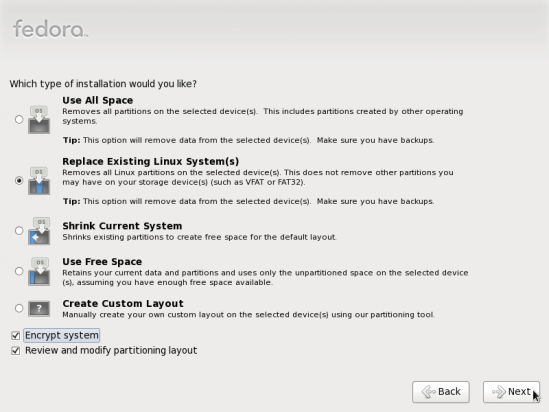
Disk partitioning options
The image below shows the default disk partitioning scheme of Fedora 13 when encryption is enabled. Notice the locked key icon at the lower part. That icon just says that the physical volume is encrypted.
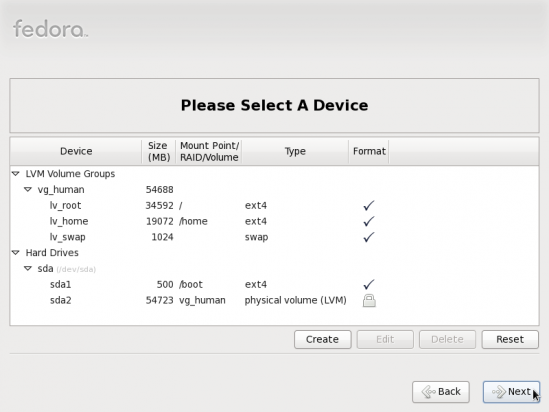
Default partitions created for Fedora 13
At the step of the installation process represented by the image below, you are prompted to type in the encryption passphrase, which should be at least eight characters long. This passphrase should not match, or be the same as, any user account password.
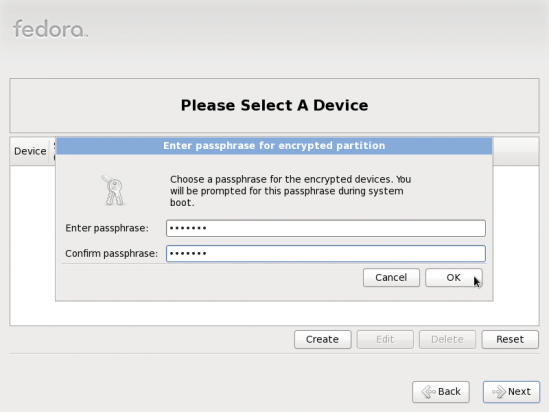
Specifying disk encryption password
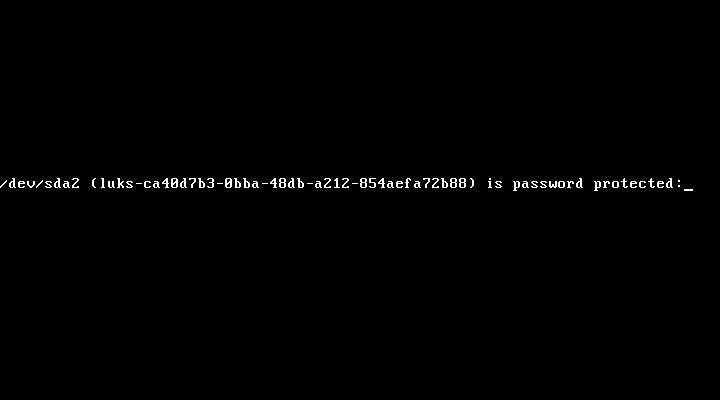
This is what happens whenever you reboot your Fedora 13-powered computer – if the hard disk is encrypted: The system will prompt for the passphrase specified above. Without inputting the correct passphrase, you will not be able to boot into the computer. And there is no way I know of to recover the passphrase if you forget it. That’s the downside. So be careful. The upside is if your computer is stolen, or if you ever have an experience like Jason Chen’s, you can be sure that your data will be inaccessible.
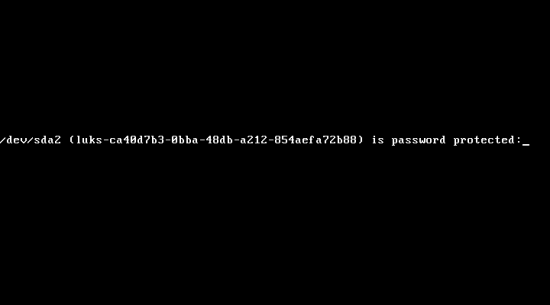
Passphrase being requested to unlock the hard drive



What encryption is used to encrypt Fedora? No I’m not paranoid, however, I will be using this feature when installing Fusion 14. Thanks
Standard luks aes-256 or something like that.
This is just the same in Debian Lenny (5.x), just check the box, and voila, encrypted disks