-
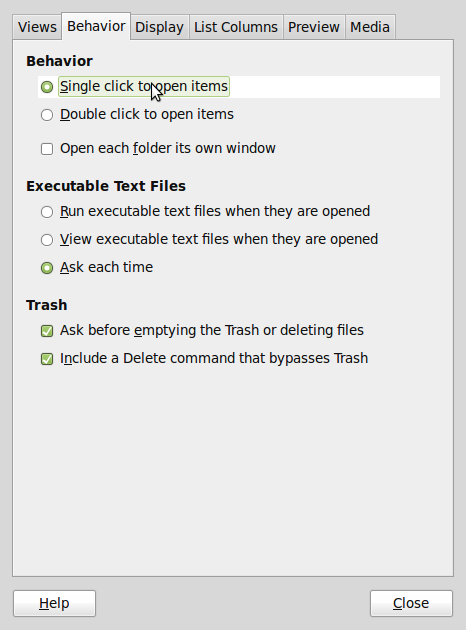
Single-Clicking – To open a file or folder in Nautilus, the file manager, you have to double-click on it. That’s the default behavior. You can change it so that that you only need to single-click on an item to open it. To do this, launch Nautilus, click on the Edit menu and select Preferences. On the window that pops up, click on the Behavior tab. Under the Behavior section, enable “Single click to open items” as shown in the image below. Close the window. Now, all you need to open an item – file or folder – is a single click.
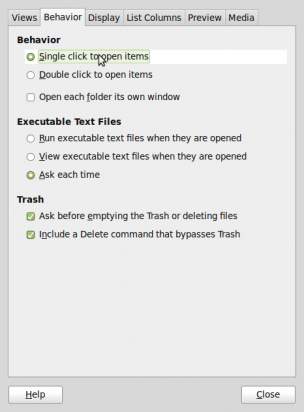
Enable single-clicking to open a folder or application
-
Window Shading – When you double-click on the title bar of any window, the default behavior is to maximize it. Since their is already a maximize button you can use for this, I always like to shade or roll up a window when I double-click on its title bar. To change this setting, Click on the “Windows” utility in the Look and Feel section of the Control Center. Under “Titlebar Action,” click on the drop down menu and select “Roll up.” Close the window. Now when you double-click on the title bar of a window, it will be shaded or rolled up. It’s much cooler than the default behavior.
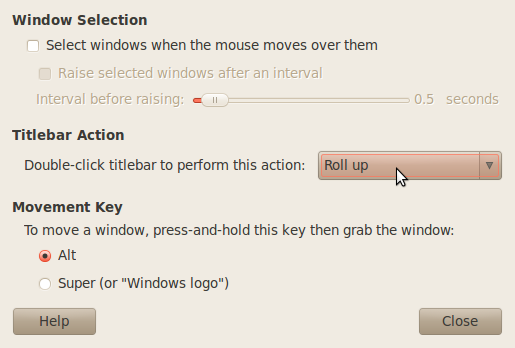
Modifying windows behavior when double-clicking on the title bar
- Modify Startup Behaviors – I like to have my computer remember the applications that were open before I rebooted, shut it down, or logged out (this is not the same as startup applications). To make this happen,click the “Startup Applications” tool in the Personal section of the Control Center. Then click on the “Options” tab. The only option here is to check or enable “Automatically remember running applications when logging out.”
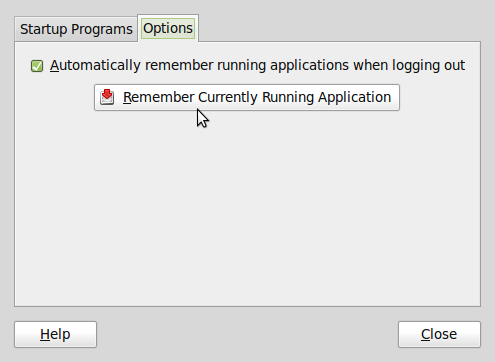
Configure Mint 9 to remember open applications when logging out or rebooting.
- Media Center Application – The lone media center application in Linux Mint 9’s default repository is Moovida. You can install it via the Software Center, or from a shell terminal by typing sudo apt-get install moovida.
- Install Games – Linux Mint does not have a single game application installed. You can, however, install as many games as you like by using the Software Center. If you know the name of the game you want to install, just search for it, or click on the Games category icon, then the subcategory game icons, and browse the list of available games. You will find a nice colection of 2D and 3D games.
Pages: 1 2