-
Enable openSSH Server – Pardus comes pre-installed with the openSSH server. However, it is not started by default. To start it, access the Service Manager tool in the Computer Administration section of the General tab of System Settings. Scroll down to find the openssh entry as shown below. Click to start it and then check “Run on start” to ensure that it is started the next time you reboot.
Aside from the protection offered by the firewall, there is no package in Pardus that you can install to provide an extra layer of protection from brute force attacks against the openSSH server.
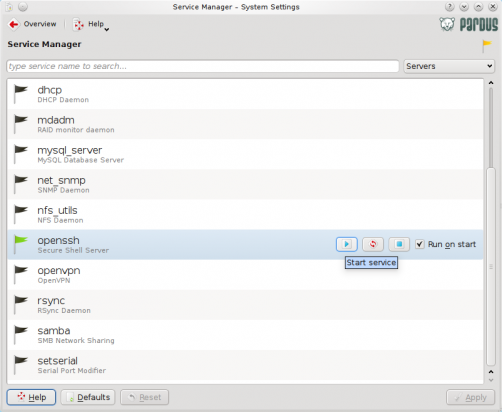
Enable the openSSH server on Pardus 2009.2
-
Desktop Effects – There are some desktop effects you can enable on Pardus to make it a little bit more fun to use. To start, click on the Desktop tool in the Look and Feel section of the General tab of System Settings. On the page that opens up, check “Enable desktop effects,” if it is not already checked. Then click on the All Effects tab.
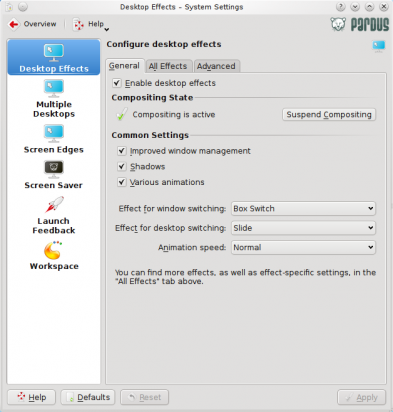
Enable desktop effects
On the All Effects tab page, scroll to see all the window and desktop effects available. I especially like the Wobbly Windows effect. Make your selections, then go on to the Multiple Desktops section.
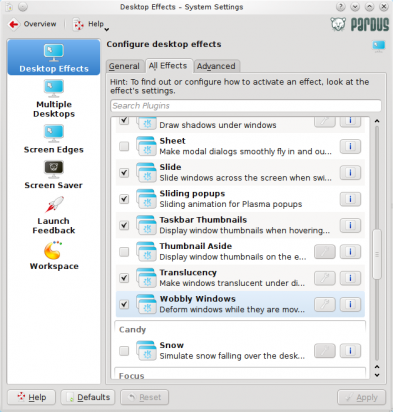
Enable window effects
Multiple desktops – It is really not necessary to make any changes in this section. This is just to show, if you are new to KDE, how you can change the number of virtual desktops or workspaces. The default is four. The maximum number is twenty, but it doesn’t make much sense to enable more than four. Enough with this section. Let’s go to the Screen Saver section.
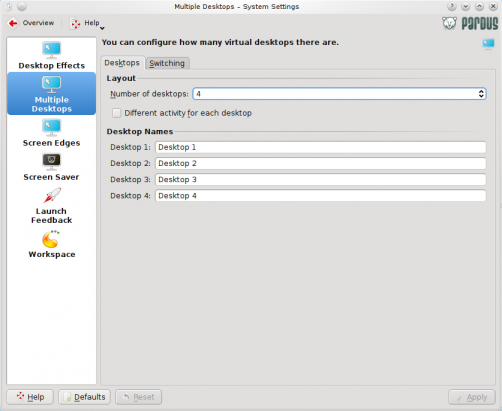
How many workspaces do you need?
Screen Saver – On Pardus 2009.2, the screen saver is not enabled by default. Check “start automatically,” then for added security, you may want to check “Require password to stop.” There are a good number of screen saver effects to choose from. Make your selection, then click on the Apply button.
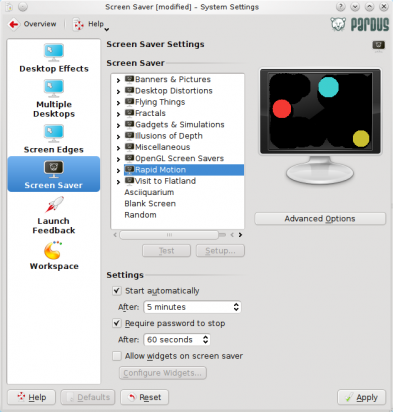
Screensaver settings
-
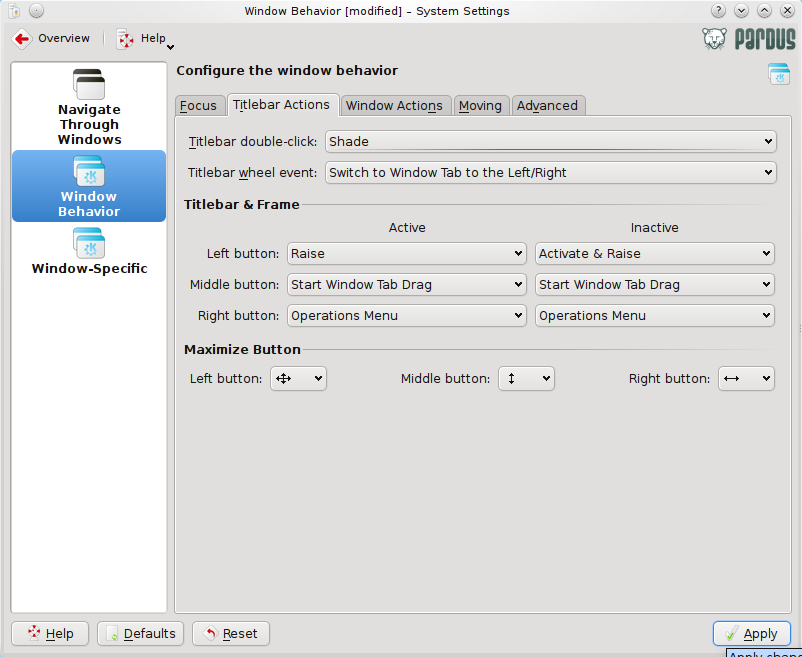
Titlebar Double-Click – By default, a window is maximized when you double-click on its titlebar. This behavior can be modified so that windows roll up or shade whenever their titlebar is clicked. This is easily accomplished by using the Windows Behavior tool in the Look and Feel section of the General tab of System Settings.
Click on the Titlebar Actions tab and select Shade in the drop down menu next to “Titlebar double-click.” Click Apply. The next time you double click on a window’s titlebar, it will roll up or be shaded.
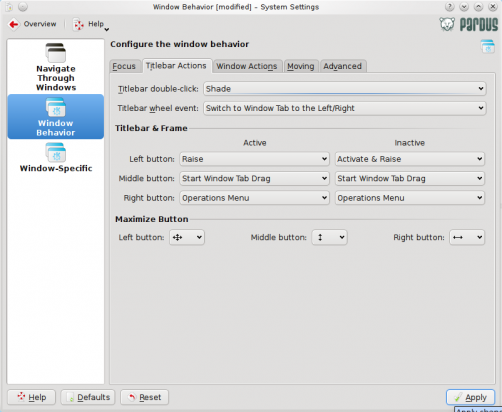
Change titlebar behavior on double-click
That’s all there is to customizing your Pardus 2009.2 desktop.