
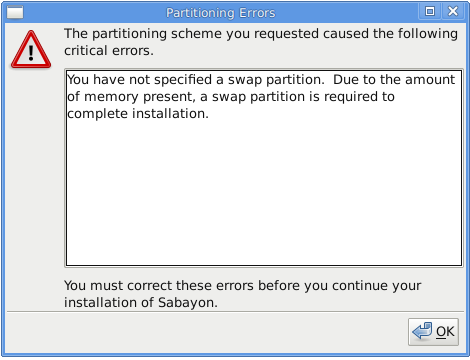
 Thanks to its use of Anaconda, the Fedora installer, Sabayon 5.3, the latest release of the Gentoo-based distribution, is one of the first Linux distributions with support for the btrfs file system. Btrfs is one of the newest filesystems in the Linux kernel. It is similar to Oracle’s ZFS, but lacks ZFS’ more advanced features. It is also still in the developmental stage, not completely ready for prime time.
But it is good enough for us to play with, to get to know it better before it’s deemed ready for production. If this is completely new to you, btrfs, B-tree File System (pronounced Butter Tree F S), “is a new copy on write filesystem for Linux aimed at implementing advanced features while focusing on fault tolerance, repair and easy administration.” In many respects, btrfs is similar to LVM’s Volume Group. Imagine LVM on steroids (benefits of LVM) and you get a pretty good idea what btrfs brings to the table.
For raw details about btrfs, see this Oracle page (Btrfs was originally a project of Oracle). A future article will delve into how to manage btrfs. For now, let’s see how we can install Sabayon 5.3 on a btrfs root filesystem.
Sabayon 5.3 is available as a live CD/DVD. The image below shows the boot options. While installing the test system, I observed that the installation failed if the Graphical Installation option is selected, that is, if the live environment is bypassed. So the recommended method of getting this done is to boot into the live environment, then initiate installation by clicking on the Install to hard disk icon on the desktop.
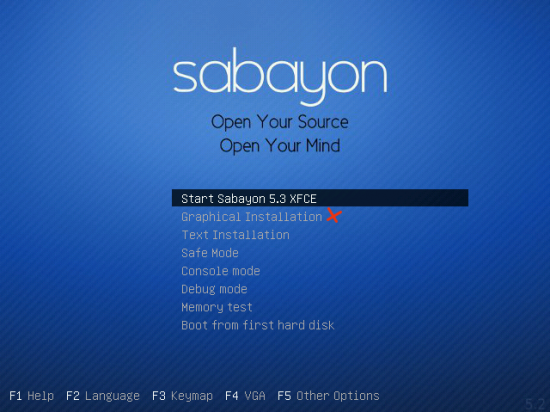
Boot options for Sabayon 5.3
To reduce the number of images used in this tutorial, the screenshots for the first six steps are not shown. These are the steps for Language and Keyboard Layout selection, Hostname and Time zone settings, and the root password and username settings.
We continue, therefore, at step seven of the installation process. At this step, you have to make a choice between two storage options. Since this installation was done on a local computer, the default option, Basic Storage Devices, is the right option. Specialized Storage Devices is for installation on remote storage devices. Click Next to continue.
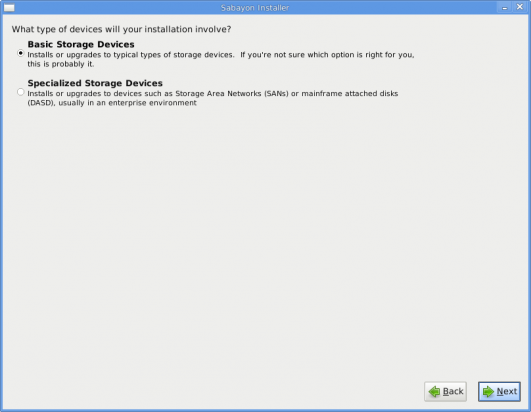
Storage selection
There is just one hard drive on the computer used for this tutorial. If yours has more than one and you want to use all for the installation, make sure they are all selected and click Next.
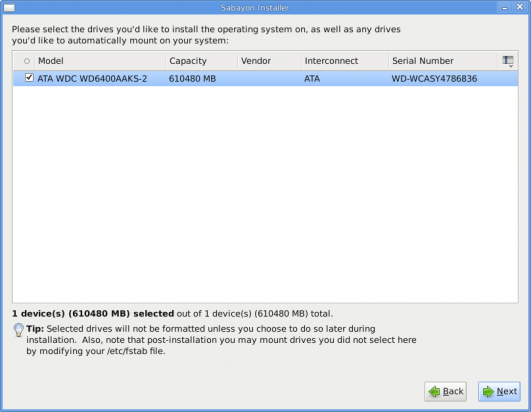
Disk selection
If there is no existing installation on the hard drive(s) on the computer, you will likely not see this step. For this tutorial, I’m going to perform a fresh installation. Next.
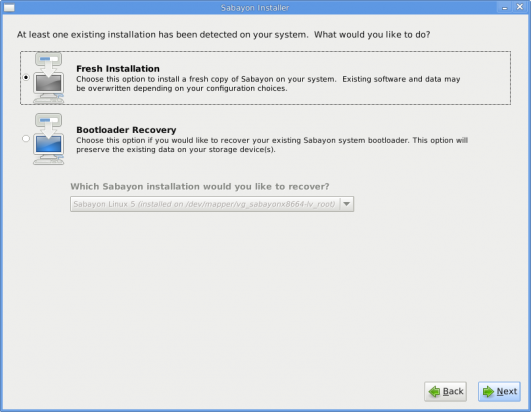
Existing OS detection
A default installation of Sabayon (5.3) uses LVM, the Linux Logical Volume Manager, as the disk partitioning scheme. We do not want that. We want to play with btrfs, so the best option to select at this step is Create Custom Layout. Next.
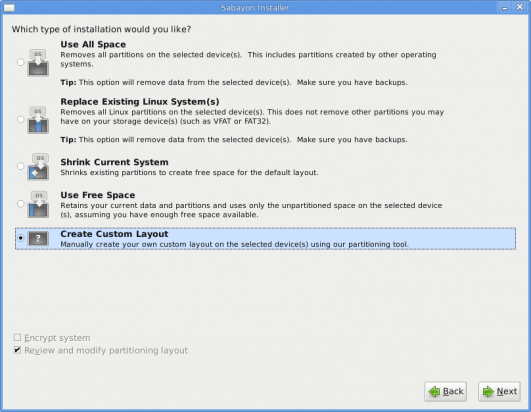
Disk partition options




Thanks for the article
I miss the /home partition.
It is in the default partition table by good
Because all your docs and settings are there
And you do not need to format it of you need to reinstall, or want to change your distro.
And of course a grub update to boot from BTR FS.