Latest Reviews & Tutorials

  • How to disable Taskbar Thumbnails in KDE
  • Disk encryption in ROSA Marathon 2012
  • How to dual-boot Ubuntu 12.04 and Windows 7
  • Still in search of that perfect desktop distribution
  • The first thing to do after installing Linux Mint Debian 201204
  • Linux Mint Debian 201204 Xfce review
  • What will ‘rm -rf /’ actually do to your Linux/BSD machine?
  • Linux Mint Debian 201204 MATE/Cinnamon review
  • What’s the point of having 2 scrollbar types in Ubuntu 12.04?
  • Install the latest and greatest Cinnamon desktop on Ubuntu 12.04
  • How to run Linux Mint Debian Cinnamon in VirtualBox
  • Manual disk partitioning guide for Linux Mint Debian
  • Chakra Archimedes-2012.04 review
  • How to install Takeoff Launcher on Kubuntu 12.04
  • Replace Oxygen with ROSA theme on any KDE-powered distribution
  • 5 user-friendly applications you could be using now
  • ROSA Desktop 2012 beta review
  • How to install Jitsi in Fedora
  • Install Jitsi 1.0 in Debian, Linux Mint and Ubuntu
  • 3 minutes with GNOME 3.4 built-in desktop recorder

How to install Sabayon 5.3 on a btrfs filesystem


I am reading page: 1 2 3

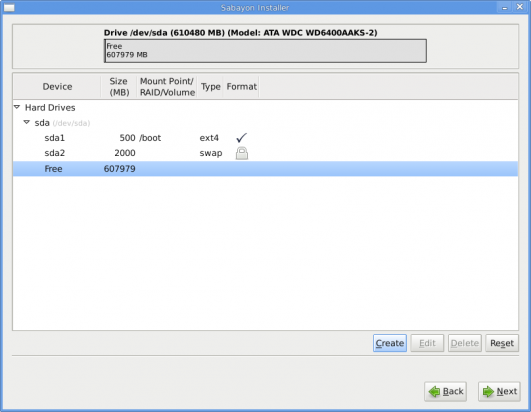
So swap and /boot have been created. Select the free space to create the last partition.
brtfs12

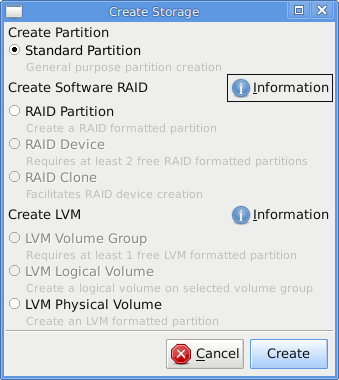
Select free space to create / partition

Again, the default option here is the right one. Create.
brtfs7

Create partition type

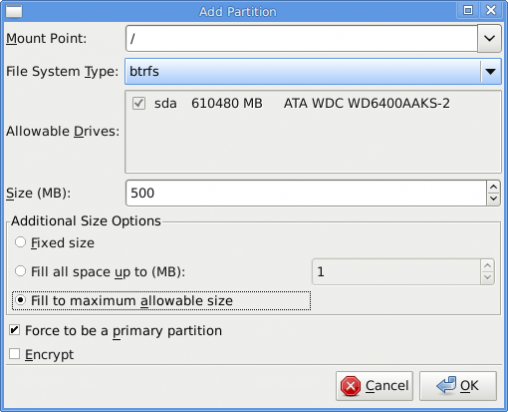
Since we are trying to create a btrfs system, the only option to select for File System Type is btrfs. Mount Point must be /, and click on the Fill to maximum allowable size radio button. Because encryption of a btrfs filesystem is not yet supported, ignore the encrypt option. OK
brtfs14

Create the btrfs root

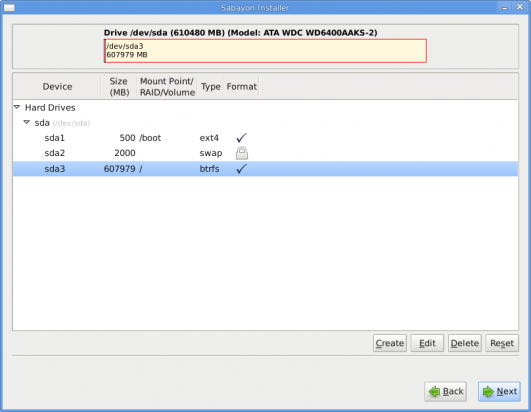
All the partition have been created. Click Next to continue with the rest of the installation, which should be completed in less than 10 minutes.
brtfs15

Review all partition created

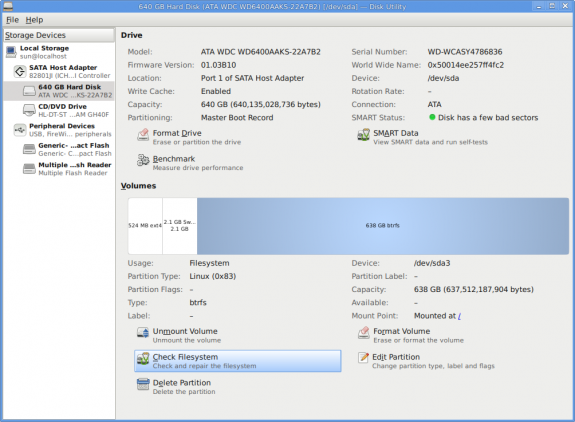
After installation, reboot into your newly installed Sabayon-powered machine and start exploring the features of btrfs. For basic administrative tasks, the Disk Utility is available. The image below shows what management options this graphical disk management utility makes available. Not very much, but to get a general view of your disk partitions, it’s good enough.
btrfs-001

Disk Utility showing the btrfs formated root partition (/dev/sda3)

A future article will delve into how to manage btrfs using several command line tools. To be notified when the article is published, subscribe to this site via RSS or email. Thanks for reading.
0saves
To have articles like this delivered automatically to your Feed Reader or Inbox, subscribe via RSS or email. For simple comments, use the commenting system, but for more involved assistance, please use the Question & Answer section.
I am reading page: 1 2 3

Posts From The Same Category:


Advertisement

1 Comment

  1. mitcoes says:

    Thanks for the article

    I miss the /home partition.
    It is in the default partition table by good
    Because all your docs and settings are there
    And you do not need to format it of you need to reinstall, or want to change your distro.

    And of course a grub update to boot from BTR FS.

Leave a Reply

Trackbacks

  1. Tweets that mention How to install Sabayon 5.3 on a btrfs filesystem — LinuxBSDos.com -- Topsy.com
  2. Links 26/7/2010: GNU/Linux Sub-notebooks Comeback | Techrights
  3. Install Sabayon 5.3 on btrfs « 0ddn1x: tricks with *nix
  4. remount the install partition during livecd install
Read previous post:
How to customize Mandriva’s updates notifier
PCLinuxOS 2010 review
How to configure encrypted LVM on Mandriva 2010 Spring
Close