
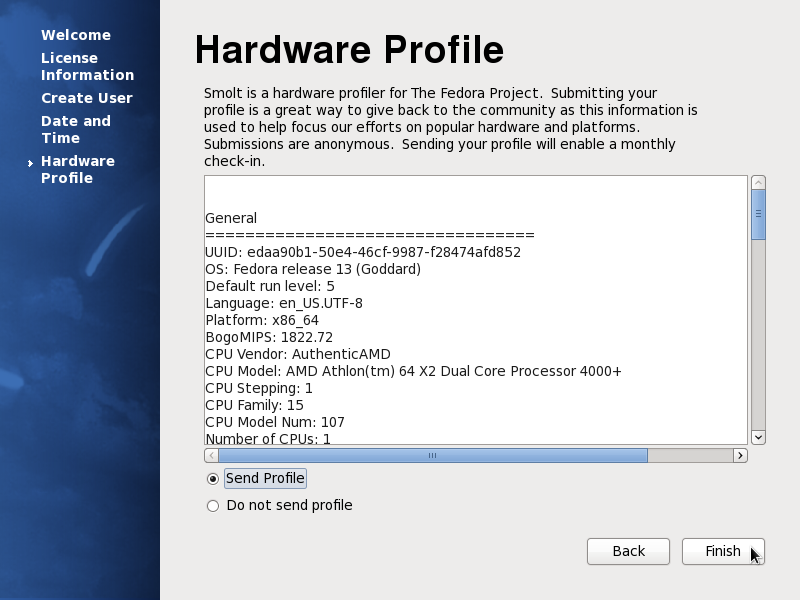
 Fedora 13 is one of a handful of Linux distributions with support for btrfs, the B-tree File System, one of the newest file systems in the Linux kernel. Btrfs is destined to be the default Linux file system. Expect to see it as the default on Fedora by the time Fedora 17 comes along. For now, however, it is still an experimental file system, If you installed Fedora using any of the live installation media, btrfs will not be available as an option in the File System Type menu. To play with btrfs on Fedora, you will have to use the boot.fedoraproject.org (bfo) installation media or the DVD installation media, which is not a live media.
This tutorial will show how to enable the btrfs option using both methods of installation. Let’s begin the bfo method.
How do you install Fedora 13 on a btrfs root?: The answer – Fedora 13 btrfs installation guide.
To using the bfo method requires that you download a small iso image, burn it to disk and boot your computer from it. At the boot menu, select the Install option and hit the Enter key.
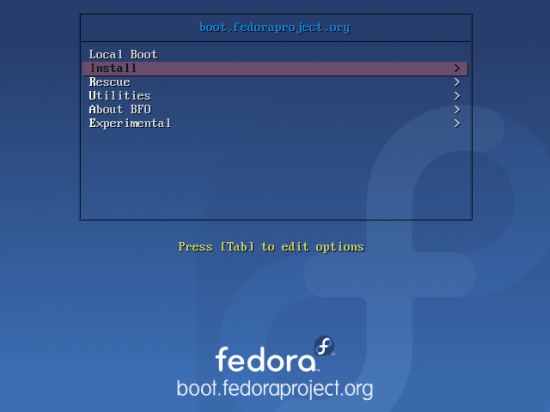
Boot options for bfo method of installation
The beauty of using the bfo method is that it enables you to install the current, the rawhide, and the last stable version of Fedora. Since we are trying to install the stable version of Fedora 13, choose the Fedora 13 option for your platform. My test environment is a 64-bit platform, so I have chosen Fedora-13-x86_64. To edit the Anaconda options for your selection, just press the Tab button on your keyboard.
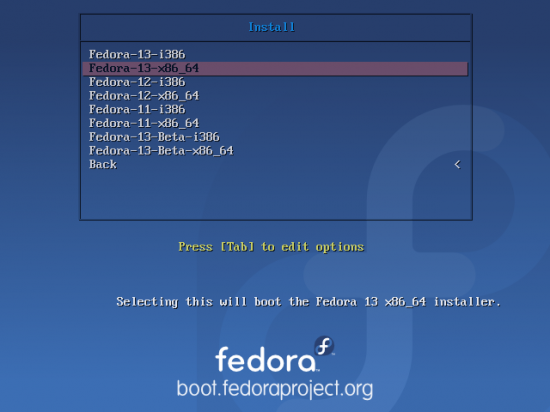
bfo1
The default Anaconda options are show here. Press the Space bar and type btrfs.
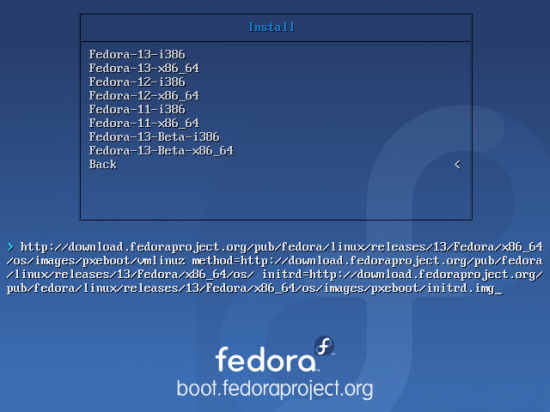
Default Anaconda boot options
Ater typing btrfs, the options should look just like this. Enter to boot with the options.
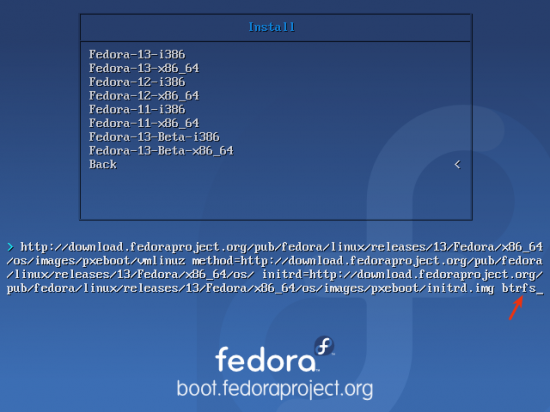
Brtfs appended to Anaconda boot options
If you want to have ipv6 support, make no changes in this window and continue with the rest of the installation
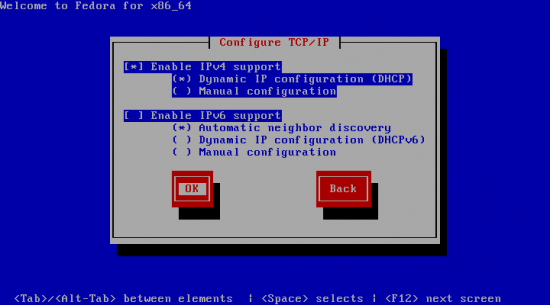
Optional media checking
The image above marks the end of the phase of the bfo method where btrfs is enabled. Now, let’s see how to enable btrfs if you were using the DVD installation media. As with the bfo method, using the DVD method requires that you download and burn the DVD iso image to disc. Then boot you computer from it.



Yes, finid, to explain, when I say “has to be ext3” my brain understands that to mean “can be ext2, ext3 or ext4” but my digits refused to transcribe such verbosity in a casual comment.
Luckily you were not fooled by my lazy fingers into following a personal preference. “;0)
Cheers!
Nice article for the adventurous!
I have been running F13x64 (w/ kern 2.6.34.1-15) for a month with BTRFS for /root and /home and have to say that it is brilliant, very fast and stable for daily desktop use.
However, a strict backup strategy is still recommended and the /boot partition has to be ext3.
BTW: You may wish to let readers know (future article?) that F13 with patched GRUB 0.97 also supports BIOS booting into GPT partitioned disks. This has many advantages over MBR and can be done using gdisk for HDD pre-partitioning and SystemRescueCD to patch the bootloader during installation.
Could you explain why “the /boot partition has to be ext3?” Runs without a hitch on ext4 here.