
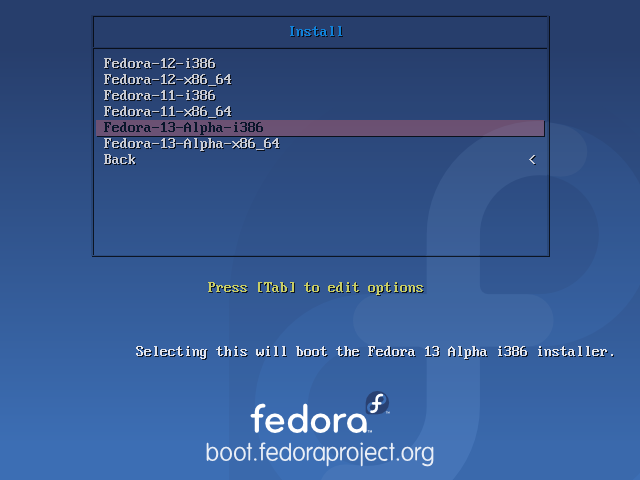
 In the last article about btrfs on Fedora, we showed how to pass the btrfs option to Anaconda, the Fedora system installation program, on Fedora 13. This article presents a step by step guide on how to actually partition a disk and install Fedora 13 on a btrfs-formatted root filesystem. Basically, this is a continuation of how to enable the btrfs Anaconda option on Fedora 13.
After you have passed the btrfs option to Anaconda either via the bfo method or the DVD installation method, the installer will present the step shown in the image below. This marks the start of the main leg of the first installation phase. Next to continue.
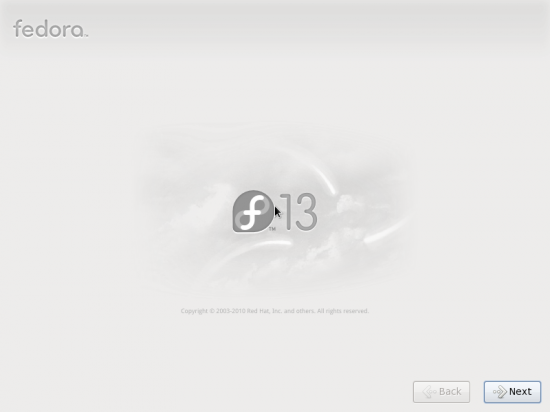
Main leg of the first installation stage
The option to choose here is the default – Basic Storage Devices. This allows you to install Fedora 13 on locally-attached storage devices.
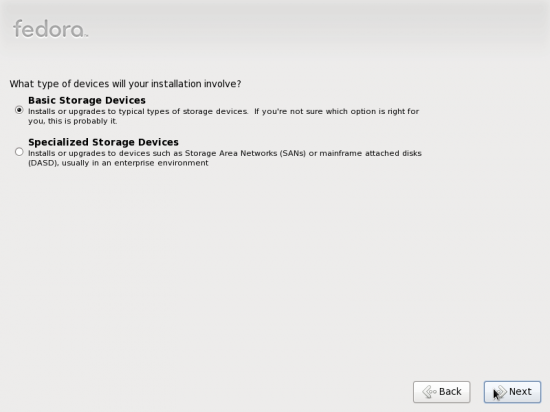
Select Storage options - Basic or Advanced
To reduce the number of images used in this tutorial, the next three images have been omitted. Those three images are where you set the language of installation, choose the time zone, and specify the root password. If you are new to Linux, the root password is the administrator password. The password you specify (for root) should be unique and it is highly recommended that it not be reused for any other user account password.
After the root password has been set, the next image should be the one you see below. Since LVM is the default disk partitioning scheme on Fedora (13), the only way we are going to install it on a btrfs root filesystem is to choose the Create Custom Layout option. Next.
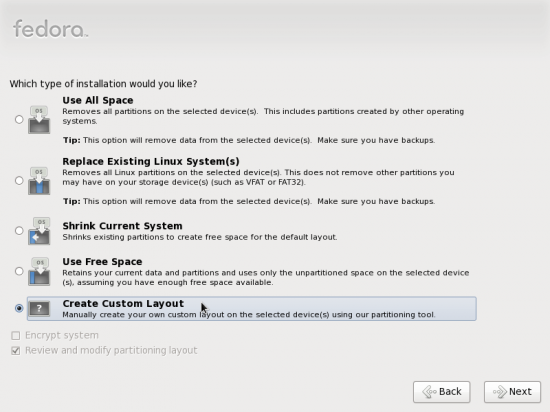
Disk partitioning options
This step presents all the disks, disk partitions, and free space available for installation. Select the disk to use and click on the Create button. Because GRUB, the boot loader cannot yet boot off a btrfs file system, you will need to create a non-btrfs-formatted boot partition. You will also have to create a swap partition outside of the btrfs root.
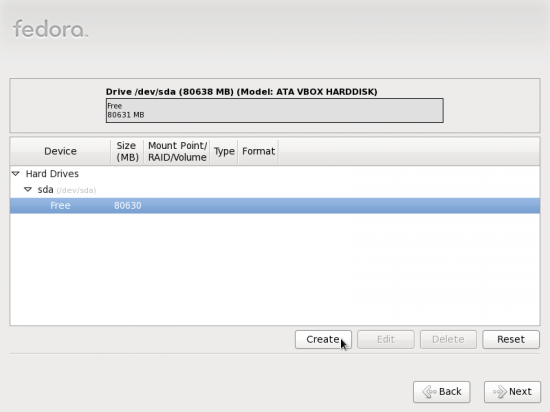
Begin disk partitioning
The default here is to create a standard partition, and that’s the option we need. Create.
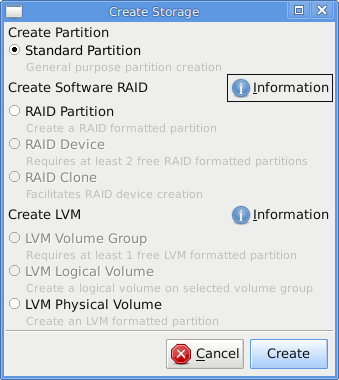
Create partition type
By default, Fedora allocates the boot partition a disk size of 500 MB. We’ll take the default size. Select the correct Mount Point – /boot, and click OK to continue.
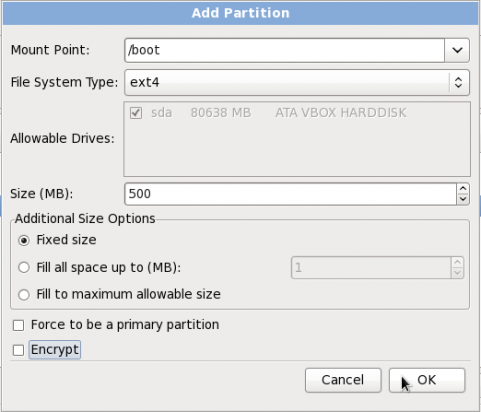
Creating the boot partition




Respected Fedora Members,
it was nice documentation on fedora 13 installtion part.
I really liked it.
will implement it in my system.
Thank You.
karan doshi.
Redhat ceritfied engineer.
This makes me almost want to try out Fedora, especially since Ubuntu takes that f**ing long to implement such basic features. I wonder if you can set the btrfs “compress” option here though.
(But, the first Anaconda screenshots looks like low usability. Why is it “Basic Storage Devices” and not just “Hard Disk” or mentioning the second with “… (Datacenter)”. And why make users guess with “If you’re not sure… this is probably it”?)
Well, if you are not sure of what option(s) to choose, it’s always safe to go with the default(s). When it doubt, take the road oft recommended.