
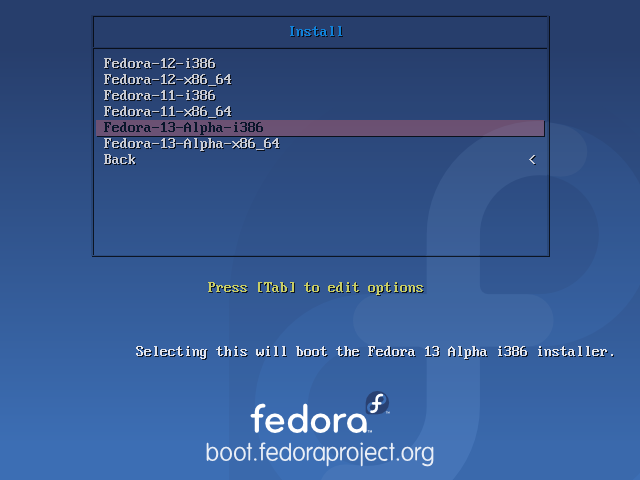
This is the boot loader configuration page. The security conscious may choose to specify a boot loader password here. A boot loader password is one of the methods you may employ to boost the physical security rating of your computer. On my personal computers and servers, I always specify a boot loader password. Next.
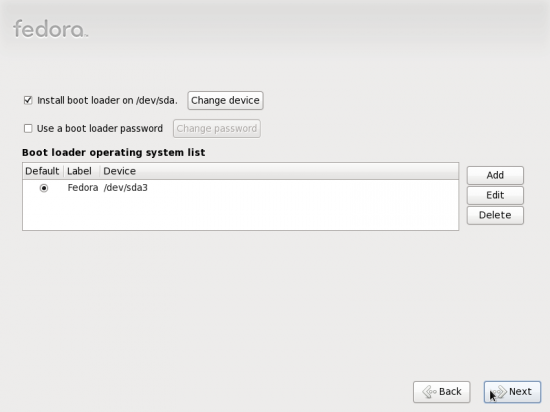
GRUB options
Here you can customize the software that will be installed and the repositories that will be consulted for the installation. The default options here should suffice. Next. This marks the last step in the first phase of the installation of Fedora 13 via the bfo or DVD methods. The computer should be rebooted after this step.
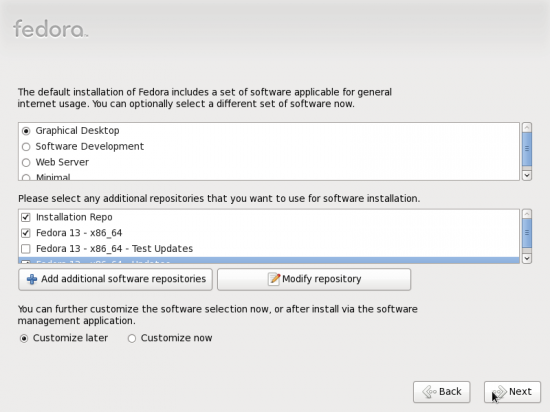
Software and repository options
This is the start of the last phase in the installation process. Click Forward to continue.
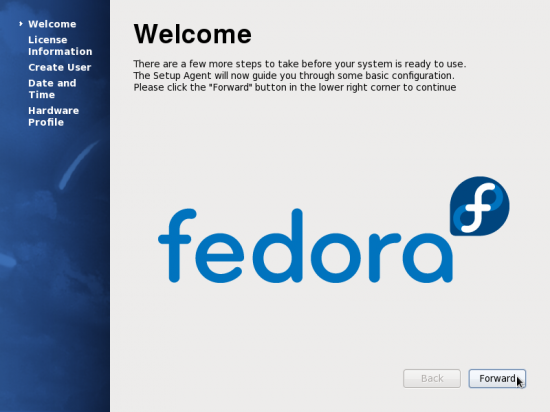
Second phase of the installation begins
This is just to inform you, if you are new to Linux and to Fedora, that the Linux distribution you just installed is made up of software licensed under the GNU General Public License, a license that gives you the freedom to use your computer and the software installed on it any way you see fit. Forward.
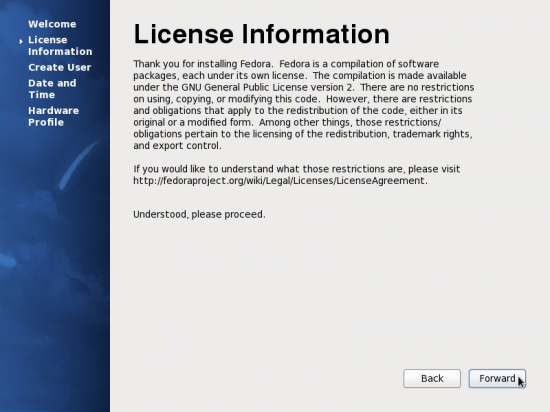
GPL license agreement
Create a user account at this step. This is the user account that you will use to log into the computer. To optimize security, it is recommended that the password you specify here not be the same as the password you specified for the root account in the first phase of the installation process. It is also recommended that it not be the same as the boot loader password, that is, if you specified a boot loader password.
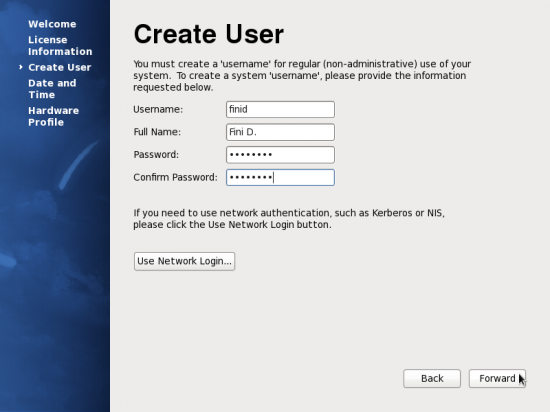
Create user account
By default, the computer’s clock will be set manually. However, you may opt to use the Network Time Protocol, NTP, to automatically synchronize the computer’s clock with that of NTP servers on the Internet. If you opt to, and it is recommended that you do, your computer will be acting as an NTP client. Note that if you have more than one computer in your local network, you can set one of them to be an NTP server for the other computers, while it is also acting as an NTP client synching with NTP servers on the Internet.
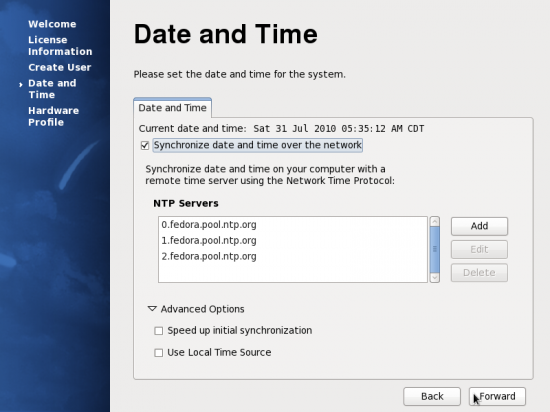
Enable the Network Time Protocol
Finally, the last step in the installation process. This is optional, but it is one way to give back to the community. All you are being asked to do is opt in to submit your computer’s profile to a remote database where all such information is collected. It is for the good of all. Make the right choice. Click Finish, and enjoy the future in Linux file systems – Btrfs.
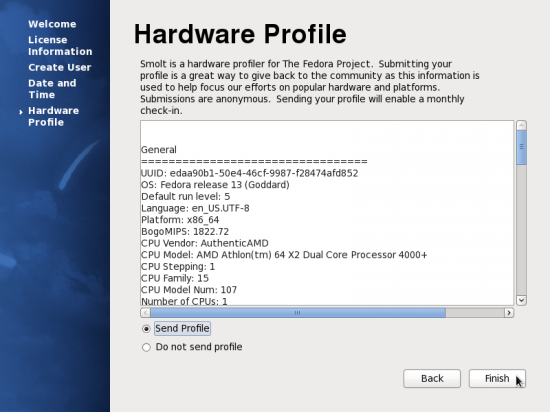
Hardware profile submission options




Respected Fedora Members,
it was nice documentation on fedora 13 installtion part.
I really liked it.
will implement it in my system.
Thank You.
karan doshi.
Redhat ceritfied engineer.
This makes me almost want to try out Fedora, especially since Ubuntu takes that f**ing long to implement such basic features. I wonder if you can set the btrfs “compress” option here though.
(But, the first Anaconda screenshots looks like low usability. Why is it “Basic Storage Devices” and not just “Hard Disk” or mentioning the second with “… (Datacenter)”. And why make users guess with “If you’re not sure… this is probably it”?)
Well, if you are not sure of what option(s) to choose, it’s always safe to go with the default(s). When it doubt, take the road oft recommended.