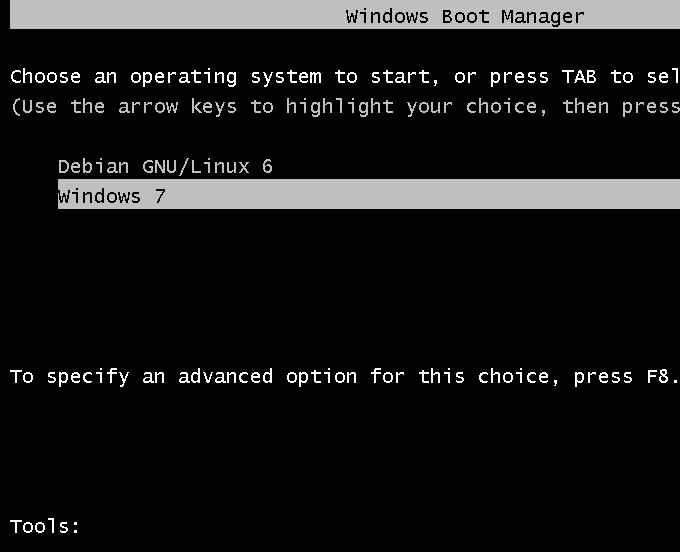
How to dual-boot Debian 6 and Windows 7
On Linux, you cannot create more than four primary partitions. And since we already have two primary partitions (for Windows 7), the installer will by default want to create the first and subsequent Debian partitions as logical partitions. The partition numbers will, therefore, start at 5. The boot partition, which is the first one we are creating, will be /dev/sda5. Note this carefully, because GRUB will be installed on this partition for reasons that I will explain when we get to that step. Continue.

Continue.

On this screen, select the file system and mount point for the new partition. Then scroll to “Done setting up the partition.” Continue.

With /boot created. you can now create other partitions. For this tutorial, I am going to create LVM partitions similar to those used in manual LVM configuration guide for Debian 6. That tutorial also explains, in detail, the steps involved in setting up LVM. If you are not familiar with the steps, you might want to consult that article.
Select the free space and click Continue.

Scroll to “Create a new partition.” Continue.

Since this partition will be used as a Physical Volume for LVM, it is okay to use all available space on the disk. Continue.

Continue.

This is what the installer will present to you. However, you do not want to use it as a standard partition. So, scroll to “Use as.” Continue.



Thank you very much for the excellent instructions. Best wishes
Perfect. Thanks so much!!
When you say “do this for other LVMs” at the mount point section, you should really explain that for the swap LVM, a different file system option needs to be used (“swap area” instead of “ext3″).
Otherwise, great tutorial! Thank you very much.
I tried this with Windows 8 but once Debian was installed (with a few errors) it wouldn’t bring up a boot menu and I lost my Windows 8. (Not a big problem as it doesn’t take long to re-install and it’s a machine to play with.)
Do you know if there is something different with Windows 8? It’s a Dell Inspiron Duo with 2GB RAM. I know I don’t have specific error messages but I will try and get them.
Thanks though, good blog.
I don’t know, since I’m still trying to get my hands on a Windows 8 installation CD, so I can test things myself
Same happened to me. But I solved it using the Windows 8 repair tool.
THanks a lot…thanku
Thanks a lot. Perfect tuto.
I have tried to install Debian on a Windows 7 machine using these instructions. During the installation and the partitioning process Debian showed the whole hard drive as free space even though Windows 7 64-bit is installed on the drive. Continuing with the installation lead to losing windows 7.
Any ideas why is Debian is seeing the whole drive as free space?
Here is the procedure used:
I used the Debian 6. Booted from the Debian 6 CD. Selected Graphical Install. Followed the steps in this article.
Thanks.
That is strange. Never has a situation like, especially with the Debian Installer.
Did not try any of the other installer options, like Expert mode, for example.
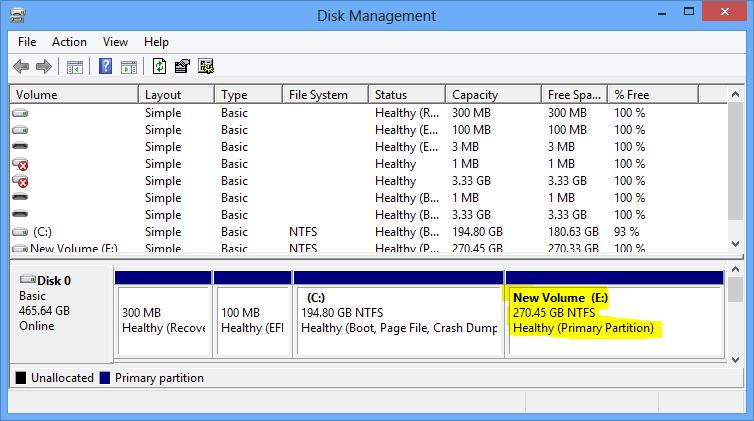
Check in Windows7 if your hard disk is mounted as dynamic disk and not basic one in which case you’ll have to do the conversion using the appropriate partitioning software with the necessary precautions of course!
I think that you have to go to Windows first, and “shrink” the partition to make room for Linux. Otherwise, Linux will grab the entire partition and bye-bye Windows.
Not necessarily. You can shrink any partition from the installer. You just have to be careful. The installer will actually do it automatically.
Hello, I assume that you boot from the Debian CD instead of windows? Am i correct? (I’m just checking as i don’t want to wreck my pc)
Doesn’t matter. The tutorial assumes you have booted into the debian CD and have gone through all the steps up to drive detection. Btw thanka heaps for the very good tutorial. It is BY FAR the best out their.
Thank you! It was very useful.
I’m confused, you use 20G for the home, 5G for the /root and 2G for the swap, so of the 114G you partitioned, you’re only showing me how to use 87G. How do I access the remainder?
ty!! awesome guide tho btw
I would just like to thank you, this helped me out a lot.
Is it much more difficult to do this when you want to install Debian on a second HDD?
I tried last night using the installer with default options (aside from picking a partition on the other HDD to use) and it failed miserably at the “install bootloader” stage.
It should actually be a lot easier because you do not have to use EasyBCD.
What was the specific error message you got?