
Sabayon is a Linux distribution described by its developers as “… a bleeding edge operating system that is both stable and reliable.” It is based on Gentoo, a source-based (Linux) distribution. The latest edition, Sabayon 7 (GNOME 3, KDE and Xfce desktop editions), was released October 10 2011. Sabayon Core was released nine days after that (October 19 2011). The last Sabayon 7 editions, the Experimental Releases, featuring the LXDE, E17 and Awesome desktop environments, were released on November 9 2011.
The GNOME edition has already been reviewed here (see Sabayon 7 GNOME 3 review). This review is of the KDE edition, which made my list of the top 6 KDE distributions for 2011.
Though there are 32- and 64-bit versions available for download, this review is based on test installations of the 32-bit edition, which comes as a DVD-sized (2.1 GB), installable Live image. The boot menu is shown below.

Installer and Installation Routine The Sabayon installer is a slightly modified version of Anaconda, the Fedora system installation program. Unlike latest version of Anaconda in Fedora 16, the Sabayon 7 installer does not use GPT, the GUID Partition Table, by default on standalone installations. It also does not offer an option to disable LVM, the Linux Logical Volume Manager, which is the default disk partitioning scheme.

The only new feature in this edition of the Sabayon installer is that you are given the option to disable the firewall (it is enabled by default) at the hostname configuration step. A screen shot of that step is shown here.

A new installation uses about 4.9 GB of disk space, with ext4 as the default file system, and ext3, xfs, jfs and btrfs as optional file system types. Since Sabayon is a rolling release distribution, existing users do not have to reinstall to have an up to date system. The simple act of applying available updates is enough to give existing users a system as current as a brand new installation. I tested the rolling feature while reviewing the GNOME 3 edition (see Sabayon 7 GNOME 3 review), and it worked as advertised. So I did not bother to do that with the KDE edition.
Logging in And Using the System: Like its boot menu, Sabayon’s login screen offers many more options than that of any other distribution I have used or reviewed. But those other options are not the focus of this review, so I will just stick to the KDE desktop.

The desktop itself is powered by KDE 4.7.3, using the Kickoff menu. I like how the developers took the time to place a set of applications that you will most likely be using daily in the Favorites view of the menu.

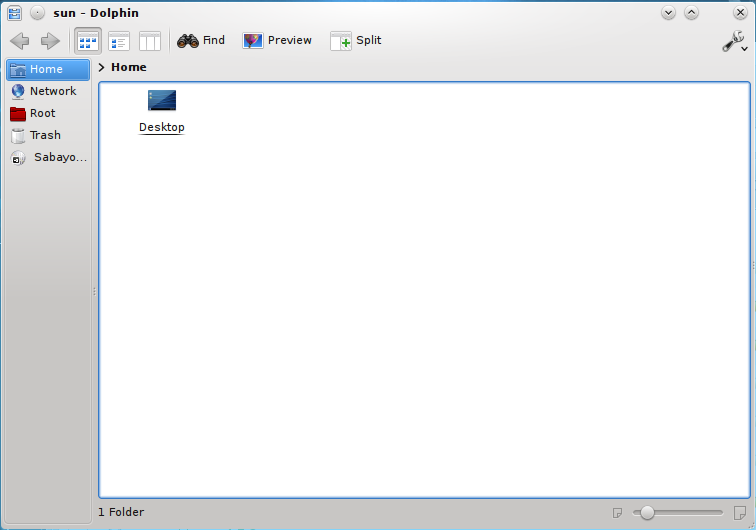
But somehow, they forgot to customize Dolphin, the file manager. On other (KDE) distributions, and even in non-KDE distributions, users’ home directory is populated with several folders – Downloads, Documents, Pictures, etc. In Sabayon 7, however, it appears that the decision was made to have each user create these folders themselves.

Just after installation, a few key applications failed to start. For example, every attempt to start VLC, the installed media player, from the menu, failed, with why. Attempting to start it from the command line generated the following error message. After applying all available updates were applied, all applications started without errors.

Applying available updates is an easy process because Magneto, the updates notifier, is started as soon as booting is completed and a message from via the Magneto Notification Applet informs you if there are any updates available. And on new installations, you can be sure that there are updates – in the hundreds. On my first test installation, there were about 700 packages that needed to be updated. A minor issue with the updates system, is that the Magneto Notification Applet will never stop informing you about the number of packages that need to be updated, even as the system is applying updates. In other words, Magneto is checking every few minutes how many packages remain to be updated, even as that information is clearly visible on the package manager.

One good feature of Sabayon is it is loaded with all multimedia codecs you would need to play local multimedia applications and those you would encounter on the Web. Specifically, I am referring to libdvdcss, Flash plugin and Java JRE.
Aside from a few applications failing to start before updates were applied, another issues I observed with Sabayon 7 KDE is that a connected printer was not automatically configured, even though cupsd, the printer daemon, is started out of the box. In Pardus, a KDE-based distribution that made the list of the top 6 KDE distributions for 2011, any connected printer in the printers database is automatically configured.
Device notification works. However, when a video DVD is detected, four actions for handling the DVD are available, none of which have anything to do with playing a video. The four option are: Download Photos with Gwenview, Rip Video DVD Titles with K3B, Copy with K3b, Open with File Manager. To play a video DVD, you have to start VLC from the menu, then open the DVD from its menu. For audio CDs the only available action is “Play Audio CD with Amarok,” which is great, but attempting to play an audio CD with Amarok takes way too much effort than is necessary. When using any KDE-based distribution, I always end up installing Exaile or Rhythmbox for playing my audio CDs.



Your final thought makes you look stupid and clearly indicates that you don’t know a thing about “rolling-release” – the main thing that allows Sabayon to stay firmly on the bleeding edge and be loved by the millions.