Latest Reviews & Tutorials

  • Disk encryption in ROSA Marathon 2012
  • How to dual-boot Ubuntu 12.04 and Windows 7
  • Still in search of that perfect desktop distribution
  • The first thing to do after installing Linux Mint Debian 201204
  • Linux Mint Debian 201204 Xfce review
  • What will ‘rm -rf /’ actually do to your Linux/BSD machine?
  • Linux Mint Debian 201204 MATE/Cinnamon review
  • What’s the point of having 2 scrollbar types in Ubuntu 12.04?
  • Install the latest and greatest Cinnamon desktop on Ubuntu 12.04
  • How to run Linux Mint Debian Cinnamon in VirtualBox
  • Manual disk partitioning guide for Linux Mint Debian
  • Chakra Archimedes-2012.04 review
  • How to install Takeoff Launcher on Kubuntu 12.04
  • Replace Oxygen with ROSA theme on any KDE-powered distribution
  • 5 user-friendly applications you could be using now
  • ROSA Desktop 2012 beta review
  • How to install Jitsi in Fedora
  • Install Jitsi 1.0 in Debian, Linux Mint and Ubuntu
  • 3 minutes with GNOME 3.4 built-in desktop recorder
  • How to install and configure a graphical firewall client on Comice OS 4

3 must-have extensions for Fedora 16 and other GNOME 3 installations


A default installation of a distribution using GNOME 3 can be a pain to use, but thanks to available extensions, you can make your GNOME 3 installation a little bit more fun to use, or at least closer to the type of desktop environment you are used to. KahelOS, a distribution that was recently reviewed on this website (see KahelOS 111111 review), is the only one I have used that comes pre-installed with the three extensions covered in this article.

While there are almost 100 extensions available on extensions.gnome.org, I find three of them to be almost indispensable. Do not use GNOME 3 without them! This article will show you how to install them on Fedora 16 or any other system running GNOME 3.

First, is the Dock extension. Once installed, you will find a retractable dock on the right side of the desktop which makes it easy to access your favorite and running applications. On the extensions page, you will find it on page 3. Click on it.
Dock GNOME 3 Extension

As expected, it will be off. Click on the button to the right of the name to install it. You will be promted to authenticated.
Dock GNOME 3 Extension Off

If authentication is successful, it will be installed and the status will change to On.
Dock GNOME 3 Extension On

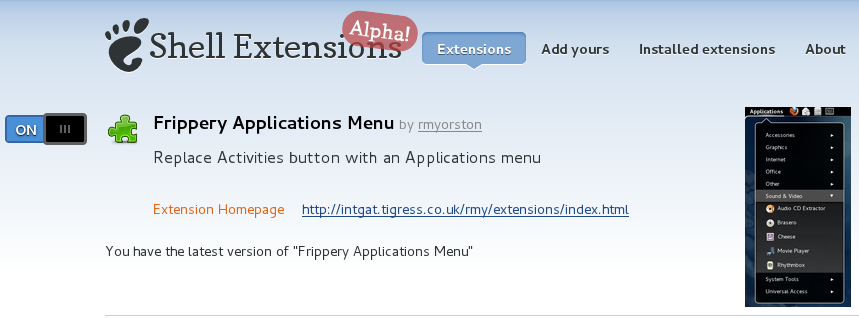
The second extension is at the bottom of the same page as the Dock extension, and it is called the Frippery Applications Menu. It replaces Activities with an application menu similar to a standard desktop menu. The installation process is the same as that of any other extension.
Frippery Application Menu GNOME 3 Extension

Prior to installation.
Frippery Applications Menu GNOME 3 Extension Off

After installation.
Frippery Application Menu GNOME 3 Extension On

The third and last is the Workspace Indicator extension. When installed, it gives you a workspace indicator on the top panel, so you can switch between workspace like you used to. You will find it on page 10 of the extensions website. Again, the installation process is the same as that of any other extension.
Workspace Indicator GNOME 3 Extension

Prior to installation.
Workspace Indicator GNOME 3 Extension Off

After installation.
Workspace Indicator GNOME 3 Extension On

0saves
To have articles like this delivered automatically to your Feed Reader or Inbox, subscribe via RSS or email. For simple comments, use the commenting system, but for more involved assistance, please use the Question & Answer section.

Posts From The Same Category:


Advertisement

1 Comment

  1. Eric says:

    I suggest the gnome tweak tool because it’s a nice way to change basic things about Gnome 3 that most people would probably like to change such as what happens when the lid closes. Anyway cheers to a great post!

    sudo yum install gnome-tweak-tool

Leave a Reply

Trackbacks

  1. Links 15/1/2012: Wine 1.3.37, Fedora Contest | Techrights
  2. Links 16/1/2012: Red Hat RHEV 3.0, LibreOffice 3.4.5 | Techrights
Read previous post:
How to install Razor-qt on Linux Mint 12 KDE
How to enable desktop slideshow on Linux Mint 12 KDE
Linux Mint 12 KDE screen shot preview
Close