
I am always looking for tools and applications that make the desktop a lot more fun to use, while boosting my productivity at the same time. Such tools should accomplish those objectives without getting in the way. I have already written about two of them in 2 cool reasons to use the K Desktop Environment.
In this article, steps you need to install another one of such applications in Linux Mint 12 KDE are presented. Since it is a KDE Plasma widget, you can also install in on any distribution that uses KDE. The application in question is called Quick Access. It provides the same features as Stackfolder, one of the two applications I wrote about
here.
You may install it from a shell terminal or from the graphical application manager. From a shell terminal, type sudo apt-get install plasma-widget-quickaccess.
Next task is to add the widget to the panel. To do that, right-click on an empty area of the panel, and select Panel Options > Add Widgets. In the search box, typing “quick access” will ring up the widget. Double-clicking on it adds it to the panel.

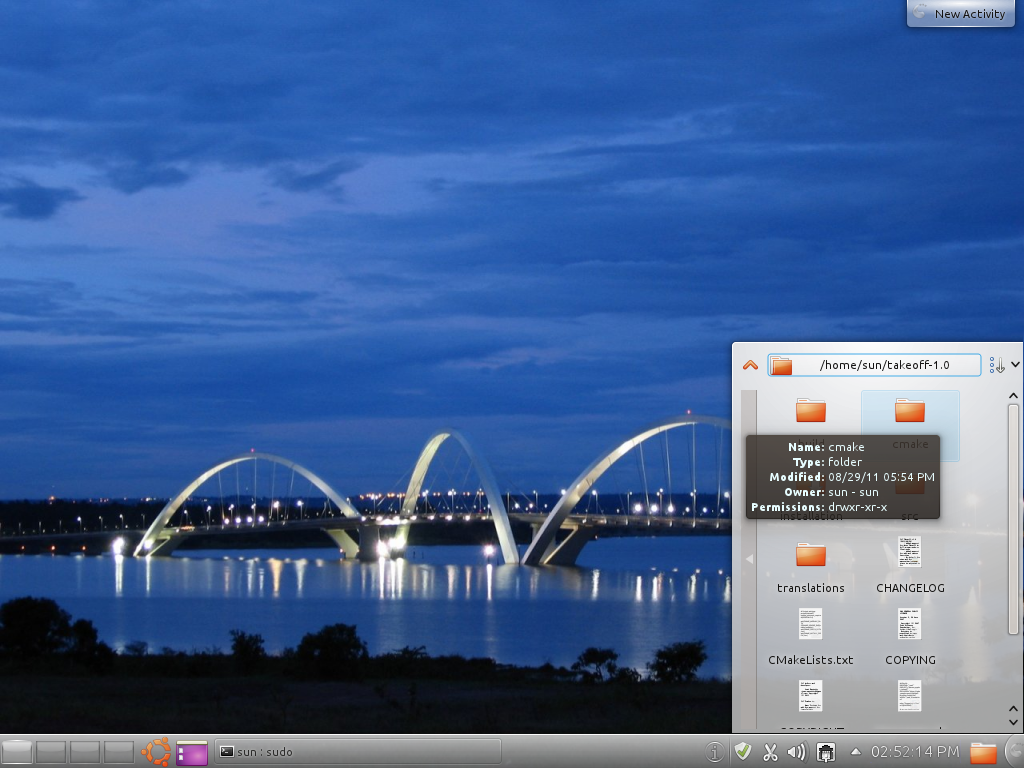
After adding the widget, you can move it to another location on the panel. This screen shot shows the widget in List Mode, the default view. You can browse your home folder without launching Dolphin, the file manager. Quick Access is highly customizable, and you can access the settings utility by right-clicking on the icon and selecting “Quick Access Settings.”

This is the General tab of the settings utility.

On the Appearance tab, you can change the look of the widget. You can, for example, change the size of the icons, turn the view mode from List Mode to Icon Mode, and enable tooltips.

From the Preview tab, you can turn previews on. It is disabled by default.

Quick Access in Icon Mode. I find this to be better than the List Mode.

Browsing image files in a directory with previews and tooltips enabled.

Browsing text files in a directory with previews and tooltips enabled.




Hi, thanks for the nice article. I read three of yours this morning.
In this one, and in to a smaller degree in the others, I would like to offer a small constructive criticism:
At the beginning, I did not figure out what quick access *was*–whether it was quick internet access, some auto-mounting utility, or some file manager type program.
I figured it out by the end of the article, and then reread it so I had a framework to understand the first part with.
Could you consider putting a single statement like: “Quick access is a …”
near the beginning?
I know a statement like that helps me, though might not help everybody as not everybody’s mind is wired the same.
Keep up the good work!
Mr.Pink
maybye a little bit weard, but in my opinion is good
Ubuntu font looks awful in KDE.