Happy New Year! Forget all that stuff about the Mayan Calendar. Be Cool!

Latest Reviews & Tutorials

  • How to install Cinnamon 1.3.1 in Ubuntu 11.10
  • Install Ubuntu 11.10 on external hard drive, with an ntfs partition at the end
  • Chakra GNU/Linux 2012.02 Archimedes review
  • Autologin, passwordless login and controlling who can reboot and shutdown your computer in KDE
  • How to install AppMenu-QML on Fedora 16 KDE
  • Pear Linux Comice OS 4 beta 1 review
  • Install appmenu-qt, HUD-like application, on Linux Mint 12 KDE
  • Sabayon 8 KDE review
  • How to make DuckDuckGo the default search engine in Chromium
  • How to customize Linux Mint 12 KDE
  • Linux Mint 12 KDE review
  • GhostBSD 2.5 review
  • How to install Takeoff Launcher on Fedora 16 KDE
  • Install Quick Access on Linux Mint 12 KDE or any KDE installation
  • How to install Linux Mint 12 KDE on a btrfs file system
  • Manual disk partitioning guide for Linux Mint 12 KDE
  • How to compile and install Takeoff Launcher on Linux Mint 12 KDE
  • 3 must-have extensions for Fedora 16 and other GNOME 3 installations
  • How to install Razor-qt on Linux Mint 12 KDE
  • How to enable desktop slideshow on Linux Mint 12 KDE

How to install Takeoff Launcher on Fedora 16 KDE


Takeoff Launcher is one of my favorite menu styles and I consider it one of 2 cool reasons to use the K Desktop Environment. Though it is not in Fedora’s repository, there is an rpm package that you can install from the project’s website.

In this tutorial, you will read about the steps necessary to install and customize it on Fedora 16 KDE, a Fedora Spin that was previously reviewed on this website (see Fedora 16 KDE review).

It is assumed that you are reading and trying to install this package from a system running Fedora 16 KDE. To download the rpm package, click here. Then click on the Fedora 16 link on that page to download the right package for your platform (there is a 32-bit and a 64-bit package).

The Firefox dialog prompt or window should open. Click OK.
Install Prompt Takeoff Launcher

Continue.
Takeoff Launcher Installation

Continue.
Takeoff Launcher Installation Dependency

Consider this carefully before clicking Yes. If you are paranoid, you might consider building Takeoff Launcher from source. The source code is available here. You might want to see how I compiled it on Linux Mint 12 KDE by reading how to compile and install Takeoff Launcher on Linux Mint 12 KDE.
Takeoff Launcher Installation Warning

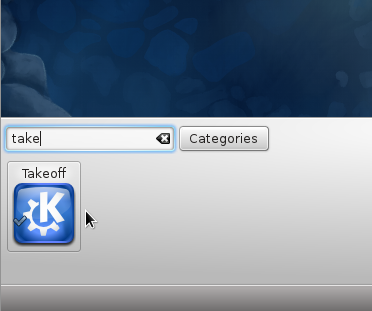
After installation, the next task is to add the launcher’s widget to the panel. To do that, right-click on an empty spot on the panel and select Panel Options > Add Widgets. Typing “take” or “takeoff” in the search box should ring up the widget. Double-click on it to add it to the panel. The launcher is ready for business. At this point, you might consider removing the other menu’s icon from the panel.
Add Takeoff Launcher Widget Fedora 16 KDE

By default, the launcher will open in fullscreen mode with an empty Favorites tab. But all that is customizable from its settings utility.
Takeoff Launcher Fullscreen Mode

To access the launcher’s settings utility, right-click on its icon on the panel, and select “Takeoff Settings.” The options that you might want to change are indicated in red. I find that the launcher looks much nicer on the desktop when it is not in fullscreen mode. Also a background image gives it a personal touch, so if you have an image to use, check the option as shown and select the image from your computer. OK.
Takeoff Launcher Settings

Here is the same Favorite tab in reduced screen mode and a background image. Looks better, right?
Takeoff Launcher Favorite Applications

And the last screen or page of the All Applications tab.
Takeoff Launcher Applications

0saves
To have articles like this delivered automatically to your Feed Reader or Inbox, subscribe via RSS or email. For simple comments, use the commenting system, but for more involved assistance, please use the Question & Answer section.

Posts From The Same Category:


Questions & Answers Hola! Looking for an answer to a question but did not find it? Then surf on over to the Questions & Answers section. It's a brand new addition to our site, and we are waiting just to answer your question(s).

No Comments

    Leave a Reply

    Trackbacks

    1. Links 18/1/2012: Btrfs In Linux 3.3, Oxygen-gtk3 1.0, Woz Says Android Better Than hypePhone | Techrights
    Read previous post:
    Install Quick Access on Linux Mint 12 KDE or any KDE installation
    How to install Linux Mint 12 KDE on a btrfs file system
    Manual disk partitioning guide for Linux Mint 12 KDE
    Close