
Many articles have already been written about Ubuntu’s HUD, or Head-Up Display, a feature that is expected on future versions of the popular distribution. It is intended to replace the menu as we know it, with voice capabilities built-in. You may read the original article by Mark Shuttleworth, the founder of Ubuntu, here.
If you use a distribution running the K Desktop Environment, there is an application that offers HUD’s promised functionality, minus the voice part, that you can install now. That application is called Appmenu-qt.
This article shows how to install it on Linux Mint 12 KDE, the most recent version of Linux Mint, which has already been reviewed on this website (see Linux Mint 12 KDE review). The installation can be from the command line or from the Software Manager.
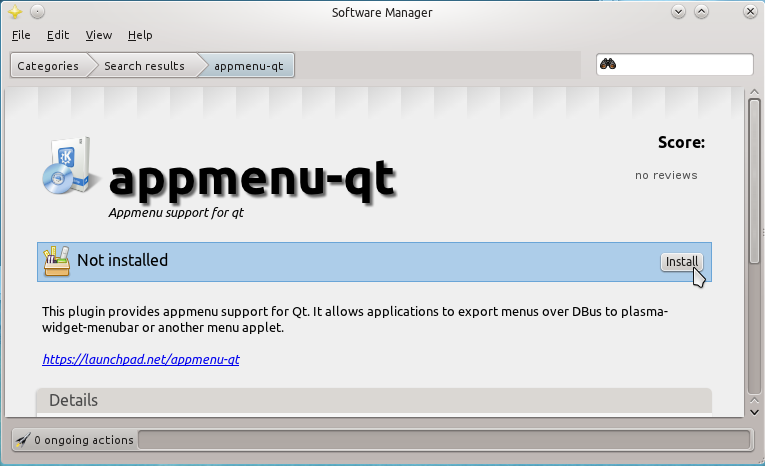
To install it from the command line, simply launch a shell terminal from Menu > Favorites > Terminal, and type sudo apt-get install appmenu-qt. Or from the Software Manager. Just search for “appmenu-qt” or just “appmenu,” and click on appmenu-qt from the search results. This screen shot shows what you should see just before the installation.

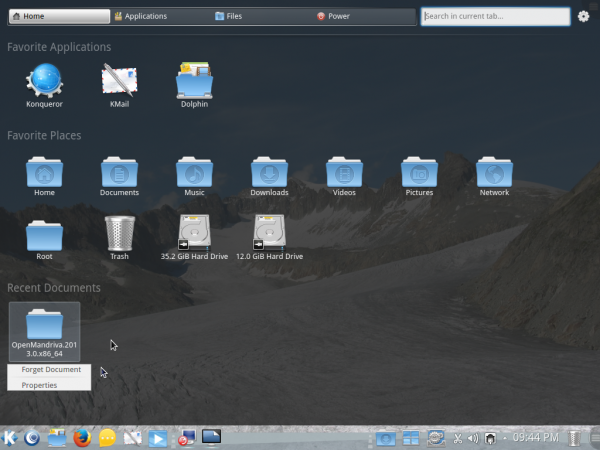
To use the application, hold down Alt, then press F2 on the keyboard. You should see the application peek out from the top of the desktop. By itself, Appmenu-qt is a useful application, but I think it will be better for KDE if it is integrated into the Takeoff Launcher, a full screen menu that needs a search feature badly. Typing in the search box will cause the application to scan your computer and return results that closely match the search string.

Where and what it searches can be customized.

You can enable the Spell Checker, or even the KDE Techbase.

Plus Wikipedia and Wikitravel.







This, in fact, IS krunner. It has nothing to do with appmenu-qt. Appmenu-qt allows you to have an apps menu bar separated from the app.
Why not just use Krunner, which is actually part of the KDE SC?
http://userbase.kde.org/Plasma/Krunner
Pressing Alt+f2 cuts off my wireless. Anyway to adjust this?