
There are several menu styles available for users of the K Desktop Environment. Virtually all, should be familiar with the Classic menu, the Kickoff menu, and Lancelot. I have recently published several articles on the Takeoff Launcher, and there is, of course, Mandriva’s ROSA Launcher (view some screen shots here).
Today, I bring another menu style to your attention. It is called AppMenu-QML. It is closer in style to Lancelot than to the others, and was coded and currently maintained by Glad Deschrijver. Like every application, it has a few shortcomings, but is quite usable. Installing it is very simple, and the steps involved are the same regardless of the distribution you are using. For this tutorial, Fedora 16 KDE, the KDE Spin of the latest stable version of Feodra, was used.
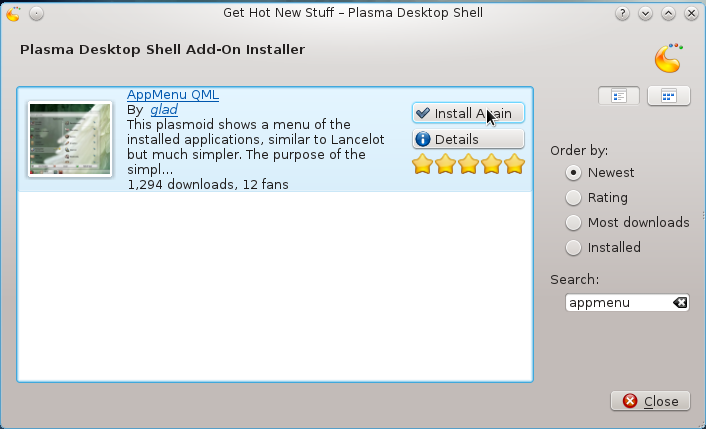
To install it, click anywhere on the panel, and select Panel Options > Add Widgets. When the widgets panel opens, click on Get New Widgets > Download New Plasma Widgets. On the window that opens, type “appmenu” in the search box. The only result returned should be Appmenu-QML. Click Install button.

After installation, click on Panel Options > Add Widgets again. Then type “qml” into the search field. The AppMenu-QML icon should appear. To add it to the panel, double-click it.

The icon should appear on the far right of the panel. clicking on it should open the menu. This screen shot shows the default view. the Favorites column is empty.

And this is the applications view

Searching for applications.

Like all the menus, AppMenu-QML is customizable. To open the settings window, right-click on the icon (of AppMenu-QML) and select Application Launcher (QML) Settings. The main settings page is shown here. From there, you can customize the dimensions and change the icon.

Here is the customized view. The main problem I had with this menu style is that I could not figure out how to add applications to the Favorites column.




Does anyone know how to add applications to the Favorites column?
Thanks in advance,
Michael
Nope. I tried, but I could not.
If you want a better menu for Fedora, you might want to try Takeoff Launcher. Much cooler and user-friendlier then anything out there. Read about it here.
Browse to the application you want to add and then hover your mouse over it. On it’s right a little heart will appear that you can click.
Thanks for your help tetris4,
I finally added applications to the favorites.
Regards,
Michael