
Autologin and passwordless login play a critical role in the physical security posture of your computer. In KDE, they are very easy to configure. But being easy to configure does not mean that you should. Why?
For one, enabling autologin makes it super easy for anybody with physical access to your computer to login, without making the required stop at the login screen. So it is generally a bad idea to enable it. If you can create a temporary user account, one with no management privileges whatsoever, then you might think about enabling autologin or even passwordless login for that account.
From a security perspective, passwordless login falls in the same category as autologin. It is, therefore, not recommended to enable it for an account with management privileges. Save this feature for a temporary or guest account with no management privileges.
But if you are in a situation where enabling these two features pose no security risk, the rest of this tutorial shows how to enable them. The tool to use for this exercise is called Login Screen. You will find in System Settings, under System Administration. Though this tutorial was written on Chakra Archimedes, the latest edition of Chakra, the steps are the same for any distribution using KDE.

Note that Login Screen is the graphical interface to kdmrc, the main configuration file for kDM, KDE’s login manager, and modifying the default settings in Login Screen overwrites the original settings in kdmrc. Because kdmrc is heavily commented, it might be a good idea to save a copy. To do that, open a shell terminal and as root, type cp /usr/share/config/kdm/kdmrc /usr/share/config/kdm/kdmrcOLD. With that out of the way, now to Login Screen. When it is open, click on the Convenience tab.
If you need to enable autologin, this is where you do it. After enabling it, select the user you want to auto login from the User dropdown menu. Click apply. To check that it works (it should), reboot the computer.

This screen shot was taken from the official documentation of KDM. Though the last sentence gives the impression that your computer at home is not in a critical environment, I beg to differ. It might not be critical to any other person, but to you it is, or it should be. Keep that in mind when enabling autologin.

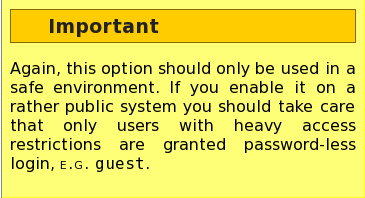
The information on this screen shot, taken from the official help page on passwordless login, offers a better advice, in line with my earlier comments in the beginning of this article..

Passwordless login is enabled from the Convenience tab too. Enable it and then select the user account that you want to login without authenticating. The difference between autologin and passwordless login, is that with the latter, the user must make a stop at the login screen. To login, all the person needs to do, is press the Enter key on the keyboard.

Aside from autologin and passwordless login, the other feature that you might want to modify, is who can reboot or shutdown the computer from the login screen. By default, everybody can, but only root is allowed to do it remotely. Modifying the default behavior is also accomplished from Login Screen, but this time, from the Shutdown tab.
If your computer is one that you do not want anybody to reboot or shutdown at will, the best thing to do is select “only root” from the Local dropdown menu. For Remote, it is better to disallow this feature for any user, including root. Enable it only when the computer needs to be management remotely. Even then, allowing remote reboot for root is not recommended.






This is pretty dumb. There’s no point in disabling the ability of a local person to reboot or shutdown the computer, unless that computer locked up in a cabinet somehow. If I can’t turn off the computer using the mouse, I’ll just press the power button.