
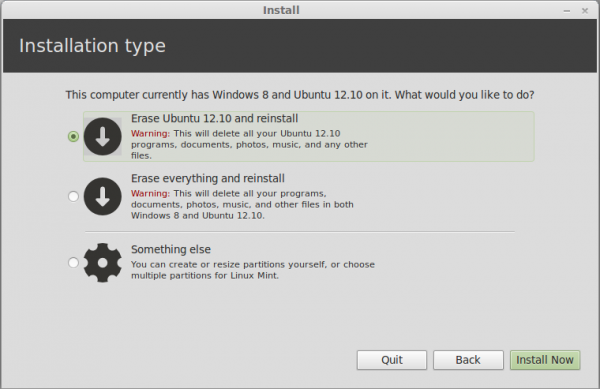
4. Create Root Partition: The next partition will be mounted at /. I allocated 15,000 MB, or 15 GB to it. And I used the default file system. Because there is just one primary partition left, the installer will create it and subsequent partitions as logical partitions. OK.

5. Create Home Partition: The third partition will be mounted at /home. Aside from the disk space, I used the defaults for the other options OK.

6. Create Swap Partition: The last partition is for Swap. It has been suggested that on a 32-bit system, 2 GB is all you need for Swap, and 4 GB or more for a 64-bit machine. Be sure to select “swap area” from the Use as dropdown menu. OK.

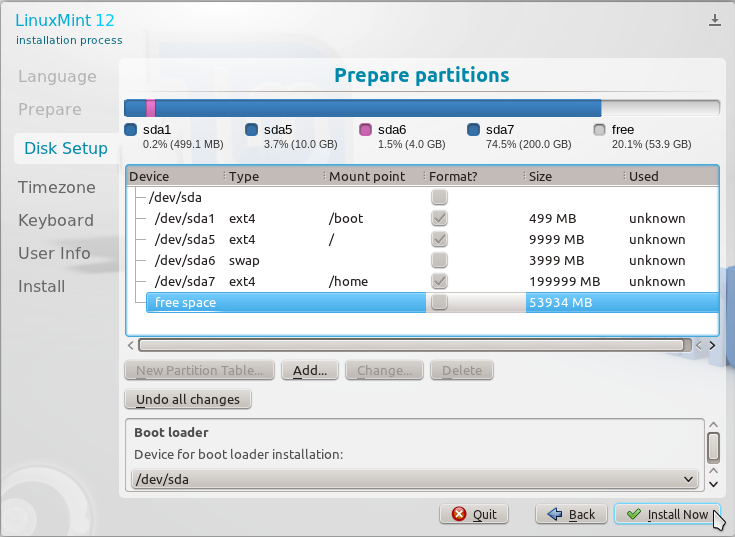
7. Complete Partitions List: When all the partitions have been created, you should see them listed in the main window of the Advanced Partitioning Tool. The final task at this step is to specify the Device for boot loader installation. By default, it is the MBR of the HDD Mint is being installed in, which, in this case, is /dev/sda. But we want GRUB to be installed in the boot partition, which is sda3 in this tutorial. So, select /dev/sda3 from the dropdown menu. Note that /dev/sdb is the default in this tutorial, but on a single disk system, /dev/sda will be the default.

8. Boot Loader Device: After the right partition has been selected for the boot loader installation, the window should look like the one shown below. Click Install Now.

After the installation has completed, rebooting the computer will drop you into Windows 8. Last and final task, is to add an entry for Linux Mint in Windows 8’s boot menu. There are several options for doing it, but the one that I’ve been using is EasyBCD from NeoSmart Technologies. It is free for personal use.
9. Download and Install EasyBCD: Download EasyBCD from here. Install it as you would any other Windows application. After installation, start it, if it is not started automatically. The main window is shown below. To add an entry for Linux Mint, click on the Add New Entry tab.

10. EasyBCD – Add Entry: Then click on the Linux/BSD tab. GRUB 2 is the version of GRUB used by Linux Mint 13, so select it from the Type menu. For the Drive dropdown menu, Automatically locate and load always worked for me, but you can select the specific partition, if it makes you happy. Modify the Name field to match, then click the Add Entry button.

11. EasyBCD – Preview Boot Menu: To preview what Windows 8’s boot menu will look like, click the Edit Boot Menu tab. You can change the boot order and mess with a few other options from here. Save Settings, exit EasyBCD and reboot the computer.

You should be presented with Windows 8’s boot menu, with the option to boot into Windows 8 or Linux Mint 13.



hello sir , i have successfully installed linux mint 14 on my laptop alongwith windows 8(already installed and working). i referred to your article given above and installed GRUB on separate space,i.e not replacing window’s MBR. after succefull installation it restarted and boot into windows 8. there, as given in article, i used program EASYBCD and added an entry for GRUB in windows boot menu. i selected grub2 as a type of grub. what other things i did there are, i selected linux mint as my default os, and also gave it first preference by using ‘up’ key, and shifting mint upper in position than windows 8(actually i don’t know what it really does, and also suspect this step for all problems that later appeared).now when i started the system, i first got option to select my os, but both choices were: linux mint 14(cinnamon) and whatever i select, i get following error:
GRUB4DOS 0.4.5b 2011-11-27, Mem:625k/2929M/0M,End:35560D
[Minimal BASH-like line editing is supported for the first word, TAB lists possible command completions. Anywhere else TAB lists the possible completions of a device/filename]
grub> _
and then underscore keeps blinking. i don’t know where the problem has occured but i suspect either the grub has replaced MBR or the system couldn’t find any one of GRUB or MBR. please help me . have found a lot of posts on above type of error but all of them have different causes. waiting for your reply. and thanks in advance.
Also check this out:
http://neosmart.net/forums/showthread.php?t=11135
Thoughts.
AS said, while your motherboard is UEFI capable, you are not using it and this tutorial has absolutely nothing to do with anything UEFI. The fact there is no primary partition limit and no logicals on GPT, should have been a major clue.
This (like your other tutorials) is really just dual booting on UEFI hardware, not UEFI dual booting. You’re booting the machine in BIOS emulation mode which your mobo likely defaults to (it must have the other option), so you don’t have GPT, you don’t use the UEFI boot manager, and you’re not showing how the automated and manual install process works. I know Ubiquity, Anaconda, Yast and debian-installer can set up a proper UEFI boot, and the Arch install scripts allow for various UEFI only setups, including the ability to boot the kernel directly, without a bootloader. You should look into exploring those options, it’s gonna be more of a advanced type of tutorial, but much more interesting.
You are absolutely correct. I’ll take that into consideration for the next one.
Great article, my problem with it is…after reading as much as I can find about this, I turned off secure boot in the BIOS. Turned off fast boot and that seems to be everyone’s answer. With the “boot mode” in the BIOS set at uefi, the boot able disc is never found. Everyone tries changing the boot mode to cms. I did this and can boot from the disc. The problem arrives after installing in this boot mode, you cannot get back into win 8. How did you boot from a live disc, with the BIOS set in uefi?