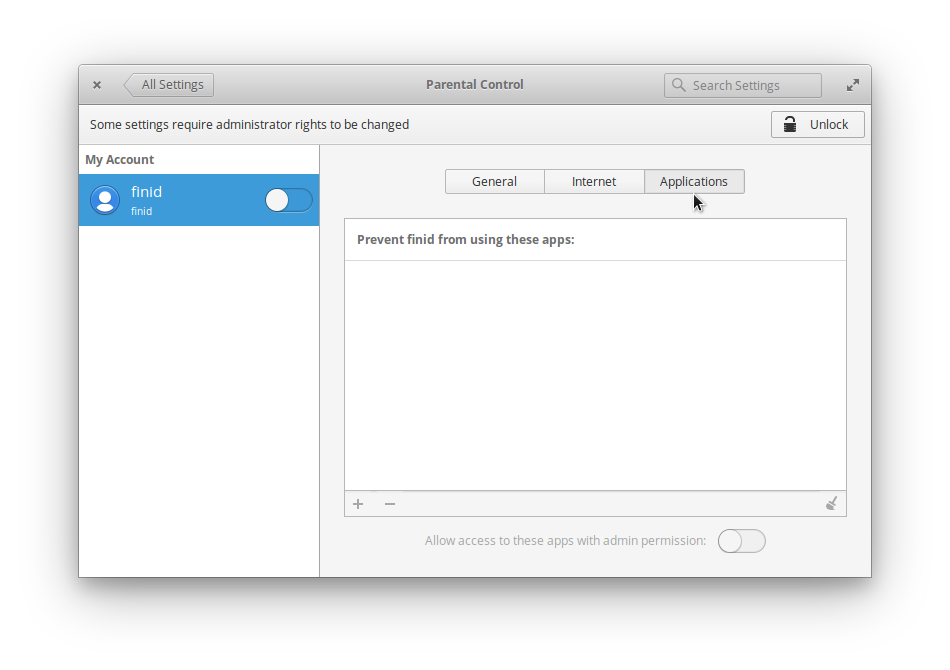
Nanny is a graphical parental control tool developed for Guadalinex, a Linux desktop distribution derived from Ubuntu and developed and maintained by the regional government of AndalucĂa, Spain. Linux Mint has a graphical parental control called mintNanny, but compared to Nanny, it is very primitive. The only distribution I am aware that has an advanced, graphical parental control tool is Mandriva. Ubuntu does not have a (graphical) parental control tool.
If you need an advanced parental control on Ubuntu, Debian or any other Linux distribution derived from them, Nanny is, therefore, your best option. Since it is a custom administrative tool developed for Gaudalinex, you won’t find it in the default repository of any other distribution that does not share the same application base with it. So how do you install it on Ubuntu, Mint, Debian, etc?
One of the most important features introduced in Sabayon 5.3, the latest release of the Gentoo-based Linux distribution, is Anaconda, the best installation program you will find on any Linux or BSD distribution. It’s not perfect, but no other installation program offers the same enterprise-grade features that comes with it. It is the same installation program you’ll find on Fedora 13.
Basically, what the Sabayon team did is dump the old Sabayon installation program in favor of the Fedora 13 installer, the Anaconda. A very good decision because Sabayon users can now configure disk encryption a lot simpler than they were used to.
Dual-booting refers to the concept of installing two operating systems on the same computer, and having the option to choose which one to boot into when the computer is rebooting. Dual-booting is actually a special case of multi-booting, or installing more than one operating on a computer.
This is a very common practice in the Linux and BSD communities. If you are coming from the Windows world and want to install a Linux or BSD distribution while maintaining your Windows installation, dual-booting is one means of accomplishing that.
Pardus is a desktop-oriented Linux distribution sponsored and developed by the Scientific & Technological Research Council of Turkey. Pardus 2009.2, the latest release, reviewed here, leaves plenty of room to customize the desktop’s features. If you are new to Linux and to Pardus, this simple tutorial will help you learn the different ways you can customize your desktop.
Note that because Pardus uses KDE as the default desktop environment, most of the tips presented in this guide may be used to customize any other KDE-based distribution. Most of the administrative tools used in this guide can be found in the control center, or more correctly, the System Settings. You can access the System Settings from Menu > System Settings.
Pardus is a desktop-oriented Linux distribution sponsored and developed by the Scientific & Technological Research Council of Turkey. It’s not a perfect Linux distribution, but it works – out of the box. A light-weight distribution, it is similar in many respects to Linux Mint. Unlike Linux Mint, however, it is not based on any other distribution, and the default desktop environment is KDE, not GNOME.
It has several custom-coded graphical management tools that new users will find very intuitive to use. Some of those tools were mentioned in Pardus 2009.1 review, which was a review of the last prior release.
Come let’s explore why I think that Geronticus eremita, the code name for Pardus 2009.2, is worth your time and disk space.
One of the best features introduced in Sabayon 5.3, the latest upgrade to the Gentoo-based, multi-purpose Linux distribution is the installer. The old installer was dumped in favor of Anaconda, the Fedora 13 installation program. Aside from bringing enterprise-class storage features to Sabayon, Anaconda boots a lot faster than Sabayon’s old installer, which had the unenviable reputation of being very slow and resource-intensive.
With the new installation program, the old installation guides are of no use to new adopters. Hence the need for this guide which presents a very detailed description of the important steps involved. You’ll find in this guide detailed explanations of the importance of disk encryption, bootloader password protection, and LVM disk space allocation.
Linux Mint 9 is a Ubuntu-based, desktop distribution that was just reviewed here. Out of the box, it is one of the most user-friendly desktop distributions available. However, like everything life, you can still customize it to suit your specific use policy. This tutorial offers a few steps you can take to customize the desktop and make using it even more fun to use than it already is.
If you are an experienced Linux user, you are probably familiar with all these tips. However, if you are not, I hope you find these tips helpful. To start this customization process, I’ll suggest that you have the Control Center, which you access from Menu > Control Center, open.

Linux Mint's Control Center
Mint 9, aka Isadora, is the latest update to the desktop-focused, Linux distribution based on Ubuntu (10.04). It is one of the more exciting desktop distributions, with a nice selection of custom-developed graphical management utilities.
Because it is based on and closely tied to Ubuntu, Linux Mint versions are always released after Ubuntu has been released, usually about one month after. With this review, I hope to highlight some of the good and not so good features of Isadora.
Fedora 13 is the latest update to the Redhat-sponsored, RPM-based Linux distribution. It has long held a reputation of being a testbed for features that will eventually make it into Redhat Enterprise Linux, and, therefore, less stable than other desktop-oriented distributions. And I think that’s one reason why Fedora has features that you’ll not find on other desktop-focused distributions.
It’s not a distribution that works out of the box, but if you are willing to spend an hour or so tweaking it, you can get it to the point where it just works. With this short review, I’ll present some of this distro’s best features, features that may entice potential users. I’ll also give a listing of those features that are not very well implemented, or are missing and would, therefore, create usability issues for users – especially new users.
This is a press release from Fluendo announcing the launch of Flumotion Media Server and its own website.
This press release marks the official launch of the free software version of Flumotion. Flumotion is a streaming media server with a modern distributed design and advanced extensibility. Flumotion is being developed by Linux multimedia specialist Fluendo.
Flumotion is available for immediate download through the public website, http://www.flumotion.net/, including the full source code, which is licensed under the standard license of the free software world: the GPL.
A Paranoid, or 5-star, security rating is the highest physical security rating that you can achieve on your computer. It entails enabling a set of OS-dependent and OS-independent features.
But why would anyone want to achieve such a high physical security rating on Fedora or any other distribution? Strict control of who can access your data if your computer falls into the wrong hands, that’s why. The point is, if your computer is stolen, or seized by agents of the state, you do not want to make it easy for them to access your data. In fact, you want to make it impossible for them to access your data.
Fedora 13 is one of the Linux distributions that supports and uses Linux Logical Volume Manager (LVM) as the default disk partitioning scheme. While this is a good thing (it has its benefits), the space allocation to the partitions and logical volumes is not optimal. This tutorial provides a step by step guide on how to configure LVM (on Fedora 13) in a manner that satisfies the basic guidelines of LVM configuration.
So if you have the installation disk ready, insert into your computer’s optical drive and let’s get started. Note that this tutorial involves a computer with only one hard disk.
You may or may not get to see this window, but if you do, just select the disk you would like to use for the installation, then click “Next.”

Select disk to use for installation
Disk encryption is one very important tool that you can use to enhance the physical security posture of our computer, and Fedora is the only distribution that makes it very easy for every computer user to enjoy its security benefits.
Fedora 13′s implementation of disk encryption is still the same as on prior releases. The only difference is that the position of the check box to enable it changed from close to the top of the window, to very near the bottom. By default, the box is unchecked. All that’s needed to encrypt your disk then is to make sure that the check box next to “Encrypt system” is enabled before you click the “Next” button.

Disk partitioning options
Fedora is one of a handful of Linux distributions that adopts the Linux Logical Volume Manager (LVM) as its default disk partitioning scheme. LVM provides more flexible disk management capabilities than the age-old UNIX/Linux method, and that’s why I prefer Linux distributions with support for it over those that do not.
The problem with Fedora’s default LVM configuration is that the allocation of disk space to the logical volumes violates a very simple guideline that you are encouraged to abide by: Allocate just enough disk space to each logical volume that’s required to get your system up and running. In other words, leave some disk space unallocated in case you need it to grow a logical volume or to create a new logical volume for a special purpose.