Happy New Year! Forget all that stuff about the Mayan Calendar. Be Cool!

Posts Tagged ‘tutorials and tips’

Guide to dual-booting

Dual-booting refers to the concept of installing two operating systems on the same computer, and having the option to choose which one to boot into when the computer is rebooting. Dual-booting is actually a special case of multi-booting, or installing more than one operating on a computer. This is a very common practice in the [...]

How to customize Pardus 2009.2

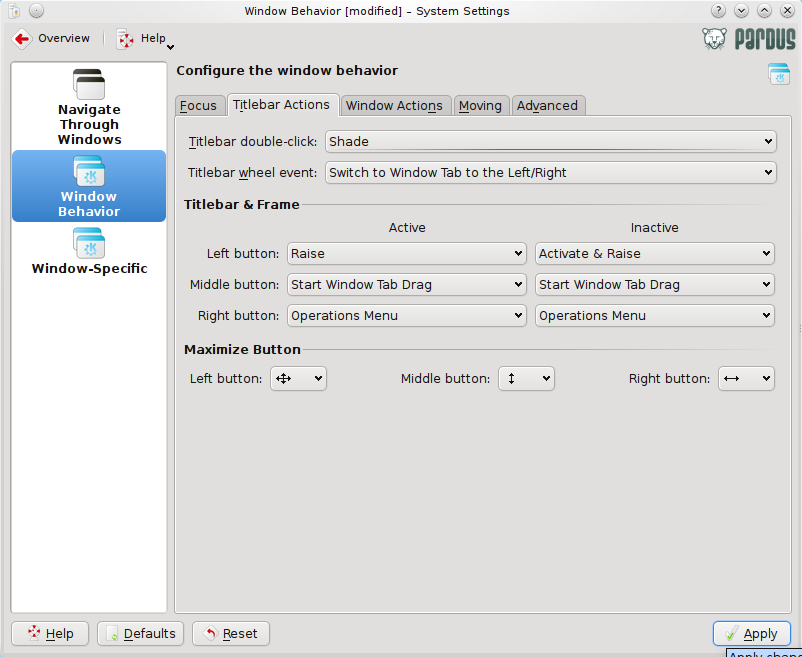
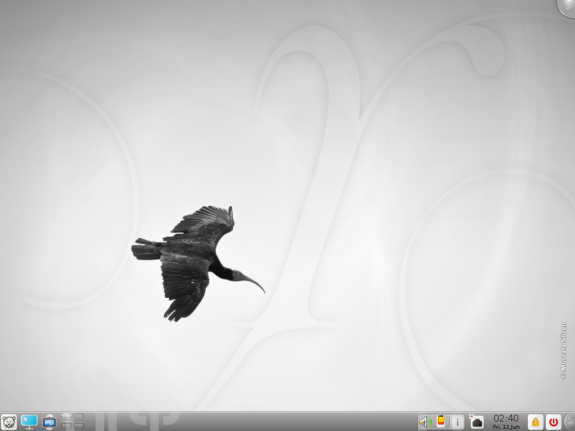
Pardus is a desktop-oriented Linux distribution sponsored and developed by the Scientific & Technological Research Council of Turkey. Pardus 2009.2, the latest release, reviewed here, leaves plenty of room to customize the desktop’s features. If you are new to Linux and to Pardus, this simple tutorial will help you learn the different ways you can [...]

Pardus 2009.2 review

Pardus is a desktop-oriented Linux distribution sponsored and developed by the Scientific & Technological Research Council of Turkey. It’s not a perfect Linux distribution, but it works – out of the box. A light-weight distribution, it is similar in many respects to Linux Mint. Unlike Linux Mint, however, it is not based on any other [...]

Sabayon 5.3 installation guide

One of the best features introduced in Sabayon 5.3, the latest upgrade to the Gentoo-based, multi-purpose Linux distribution is the installer. The old installer was dumped in favor of Anaconda, the Fedora 13 installation program. Aside from bringing enterprise-class storage features to Sabayon, Anaconda boots a lot faster than Sabayon’s old installer, which had the [...]

How to customize Linux Mint 9

Linux Mint 9 is a Ubuntu-based, desktop distribution that was just reviewed here. Out of the box, it is one of the most user-friendly desktop distributions available. However, like everything life, you can still customize it to suit your specific use policy. This tutorial offers a few steps you can take to customize the desktop [...]

Fedora 13 review

Fedora 13 is the latest update to the Redhat-sponsored, RPM-based Linux distribution. It has long held a reputation of being a testbed for features that will eventually make it into Redhat Enterprise Linux, and, therefore, less stable than other desktop-oriented distributions. And I think that’s one reason why Fedora has features that you’ll not find [...]

Going Paranoid on Fedora 13

A Paranoid, or 5-star, security rating is the highest physical security rating that you can achieve on your computer. It entails enabling a set of OS-dependent and OS-independent features. But why would anyone want to achieve such a high physical security rating on Fedora or any other distribution? Strict control of who can access your [...]

Manual LVM configuration on Fedora 13

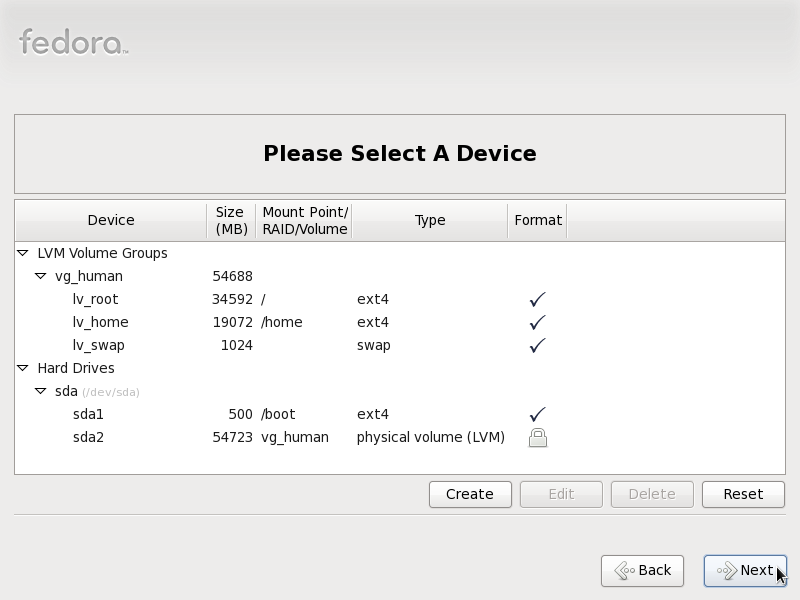
Fedora 13 is one of the Linux distributions that supports and uses Linux Logical Volume Manager (LVM) as the default disk partitioning scheme. While this is a good thing (it has its benefits), the space allocation to the partitions and logical volumes is not optimal. This tutorial provides a step by step guide on how [...]

Disk encryption on Fedora 13

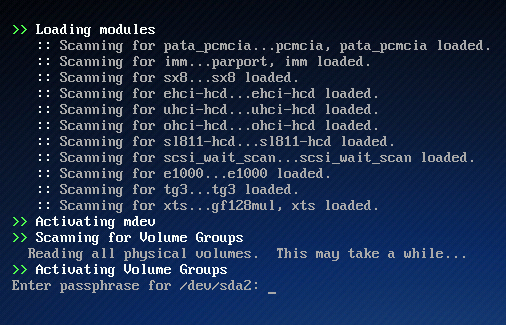
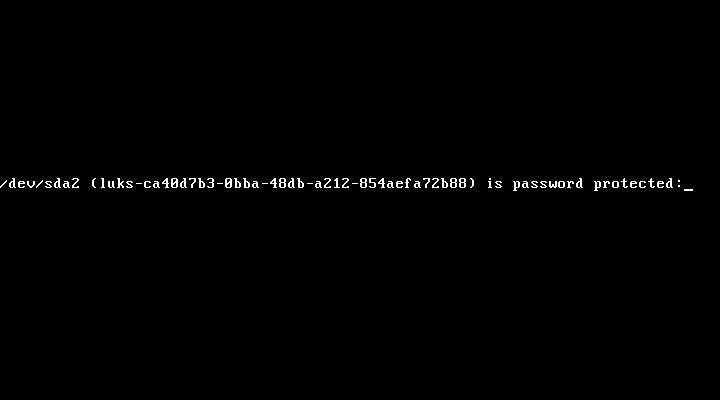
Disk encryption is one very important tool that you can use to enhance the physical security posture of our computer, and Fedora is the only distribution that makes it very easy for every computer user to enjoy its security benefits. Fedora 13′s implementation of disk encryption is still the same as on prior releases. The [...]

LVM configuration on Fedora 13

Fedora is one of a handful of Linux distributions that adopts the Linux Logical Volume Manager (LVM) as its default disk partitioning scheme. LVM provides more flexible disk management capabilities than the age-old UNIX/Linux method, and that’s why I prefer Linux distributions with support for it over those that do not. The problem with Fedora’s [...]

Manual disk partitioning guide for Linux Mint 9 and Ubuntu 10.04

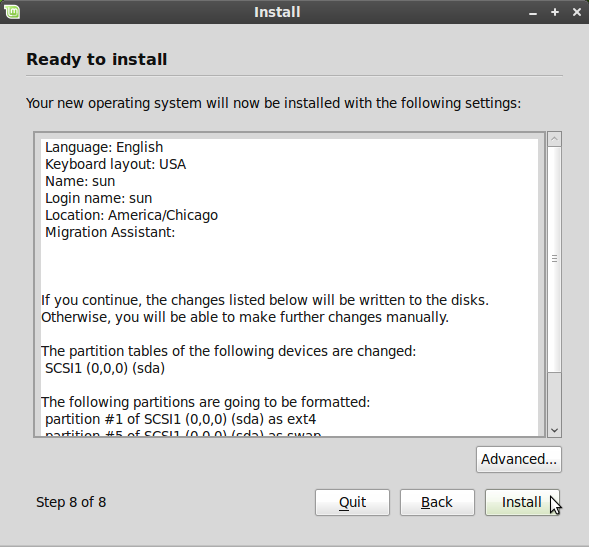
The installation program on Ubuntu 10.04 and Linux Mint 9 are the same. And that’s because Linux Mint is based on Ubuntu. So if you install one, which involves a simple seven-step process, you can use the same instructions to install the other. But being simple does not mean that the default partitioning scheme, which [...]

How to dual boot Linux Mint 9 and Ubuntu 10.04

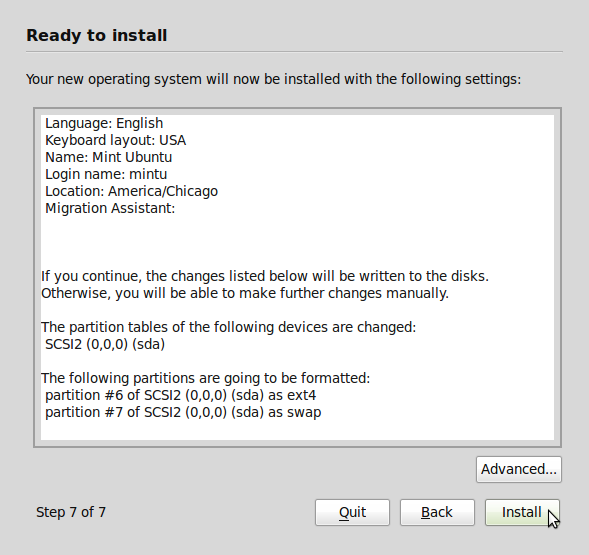
In some situations, you may want to install more than one operating system on a computer. One method of accomplishing that is to utilize virtualization applications to run one atop the other. Another method, one that does not require specialized hardware or software, is to create a multi-boot scheme – installing multiple operating systems on [...]

How to create a guest user account on Ubuntu 10.04

When installing Ubuntu, you are required to create one user account. That account is the “root” account, used to perform all administrative functions on the system. Any user with access to that account can modify or change any setting they want. Sometimes it necessary to create another account, say, for a guest, or for some [...]

How to customize Ubuntu 10.04 desktop

It’s been almost a month since Ubuntu 10.04 was released. I’m not a fan of Ubuntu, but Lucid Lynx, the code name for the latest version of Ubuntu, is, in so many ways, a better operating system to use than prior releases. However, it still falls short in some areas. This aim of this article [...]

New storage options for Anaconda on Fedora 13

Fedora 13 Beta has just been released for testing and bug reporting, with the stable version slated for release in May. Thanks to boot.fedoraproject.org, I didn’t have to download the full CD iso image. Used the same bfo iso image from last month and took the Fedora 13 beta out for spin. But rather than [...]

How to configure disk encryption on Sabayon 5.2

Disk encryption is one of five methods you can use to enhance the physical security posture of your computer (laptop, netbook, desktop or server). It enables you to protect your data in the event that your computer is ever lost or stolen. Sabayon’s installer has had the disk encryption feature for some time, but it [...]

Epidemic 3.1 installation guide

Epidemic is a desktop-oriented, KDE, Debian-based (GNU/Linux) distribution developed in Brazil. Epidemic 3.1, the latest edition, features a number of custom tools and improvements. One of those tools is EInstaller, the graphical installation program. It is supposed to be easy to use, but if you have are not familiar with disk partitioning under Linux, you’ll [...]

Printer configuration and management on PC-BSD 8

PC-BSD is a desktop-centric distribution based on FreeBSD. The latest stable version, released just this week, is PC-BSD 8. On most Linux, desktop distributions, a connected printer is automatically configured. On PC-BSD 8, however, getting a printer to work requires manual configuration. To simplify that task, a number of printer management utilities are available. You [...]

Qt + Box2D is easy!

Box2D is an Open Source rigid body 2D physics engine for C++. It’s currently (2.0.1) released under the MIT license, which is quite permissive. Box2D is used by, among other things, Gluon (http://gluon.tuxfamily.org/), which is a game library from KDE in-the-making. Integrating Box2D into your Qt application is quite easy, and this blog shows you [...]

PC-BSD 8 installation guide

PC-BSD 8 is the latest edition of PC-BSD, a desktop distribution based on FreeBSD, with KDE as its default desktop environment. It features a graphical installation program that should be easy enough for anybody to use. However, some sections of the installer could pose some difficulty to those new to the this distribution (and to [...]

Add cloud storage to OpenOffice.org with SMECloud

Cloud computing is all the rage these days. But while the idea of using your browser to access your applications and documents sounds like a great idea on paper, in practice there are all kinds of reasons to stick to your desktop software. Take OpenOffice.org, for example. None of the available Web-based word processors can [...]

OpenOffice.org: The Need for Style

Office applications like OpenOffice.org can bring out the worst in people. The same people who wouldn’t dream of driving a car without a few lessons will start pounding away in a word processor as though it were a typewriter, ignoring basic features like styles and templates. In the end, they may produce the documents they [...]

PC-BSD’s graphical firewall manager

PC-BSD is a desktop-oriented, FreeBSD-based distribution with KDE as the default desktop environment. The version due to be released shortly is PC-BSD 8. Because it the only BSD-based desktop distribution that’s in a position to compete with the best Linux desktop distributions, I’ll be publishing a number of articles over the next few weeks to [...]

Star rating system for the physical security profile of your computer

In how to enhance the physical security posture of your PC, five physical security features were identified in that article. Here’s a summary of those features: Enable BIOS password Password-protect the bootloader Full disk encryption Use strong passwords Implement password aging From this list comes the following star-rating system:

LVM configuration on Openfiler 2.3

Openfiler is one of two free and open source NAS/SAN applications in active development (the other one is FreeNAS). By default, Openfiler is installed to hard disk using the traditional Linux disk partitioning system. Linux Logical Volume Manager (LVM) adds a layer of flexibility to disk space configuration and management that is not possible with [...]

How to enhance the physical security posture of your Linux/BSD-powered PC

Securing a computer goes beyond more than just using strong passwords. You should consider what happens if an unauthorized person gains physical access to your computer. If the only security feature protecting your data from an unauthorized person is a user account password, then you have not taken enough steps to protect your computer and [...]

How Fedora protects your data with full disk encryption

Disk encryption in one of the most overlooked and underused security tools in computing. When most people think about securing a computer or the operating system that powers it, a firewall, anti-virus, and other anti-malware software comes to mind. Those are all good and necessary tools, but they are only concerned with network security. What [...]

Configure the graphical firewall manager on Pardus 2009.1

Pardus is a desktop-oriented, Linux distribution. The latest release is Pardus 2009.1, and just like Pardus 2009, it comes with IPTables/Netfilter, the firewall application built in to the Linux kernel, disabled. This is a short tutorial showing how to enable the firewall via the graphical firewall manager, and tweak the configuration options available. It’s always [...]

How to configure a network interface on Pardus 2009.1

Pardus 2009.1 is the latest release of the desktop-oriented, Linux distribution from Onur Küçük and his crew in Turkey. It is one of those distros that does not automatically configure your Internet connection. You are expected to configure it from Kaptan, the Pardus system modifier, or from the network manager applet.. This tutorial gives a [...]

How to avoid spyware, viruses on Windows 7, Vista and XP

If you are a Windows user, you ought to be familiar with all forms of malware that has ever been created by man (and woman). By malware, I mean spywares, viruses, trojans, etc, that infect your Microsoft Windows-powered computer. You can’t avoid them, no matter how hard you try. Even the latest and most expensive [...]

How to install Moovida media center on Linux Mint 8

Moovida is a free media center application available for users of Linux and BSD desktop operating systems. It is developed by Fluendo S.A., an outfit based in Barcelona, Spain. With Moovida, you can watch movies and TV shows, kickback and enjoy your music, view your pictures. and a whole lot more. Though it is not [...]

Configure the graphical firewall client on Linux Mint 8

Linux Mint 8 (aka Helena) is the latest version of the popular, desktop-oriented distribution. It is based on Ubuntu 9.10, and like Ubuntu, it comes with ufw, the uncomplicated firewall, running out of the box (actually, on Mint 8, it is not enabled). Ufw presents a user-friendly command line syntax for managing IPTables/Netfilter. However, a [...]

How to install Cairo-Dock on Simply Linux 5

Simply Linux is an Xfce-based distro from the same Russian team that publishes ALT Linux. After the customizing simply linux 5 post, the next obvious tip for our new-to-Linux friends is how to sex up their Simply Linux 5 desktop with Cairo-Dock.

Customizing Simply Linux 5

Simply Linux 5 is a distro from the same team that publishes ALT Linux. The first review of this distro on this site has just been published. This post is to offer some customization tips to those new to Linux and to this distro, and will address the following configuration changes: Change system font size [...]

Customizing ALT Linux 5 Ark desktop

ALT Linux is an rpm based distro that was just reviewed and listed on this site. It is a GNOME-based distro with decent graphical management utilities. Like most distros, the default installation leaves room for some tweaking and customization. This post presents detailed step by step guides on how to customize or enable several aspects [...]

Linux Mint 8 installation guide

Mint 8 is the latest version of Linux Mint to be made available to the public. Though the installation routine is a very simple one, I still get traffic from people looking for an installation guide for distros like Mint. If you can install Ubuntu, you can install Mint (Mint is based on Ubuntu), but [...]

How to configure LVM on Mandriva One 2010

Mandriva One is one of three desktop Linux distributions published by Mandriva. It is a Live CD edition with the option to install to hard disk. Mandriva One 2010 is the first release of Mandriva One to have support for setting up LVM. LVM had only been possible in the Free and Powerpack editions. This [...]

How to install XBMC on Hymera

Hymera Open is a Debian-based, desktop-oriented GNU/Linux operating system. It is one of the best distro’s that’s has been reviewed on this site. As good as it is, and as many software packages there are in its repository, it lacks a decent media center application. The only one in its repo is an outdated Elisa [...]

Sex up Ubuntu 9.10 desktop with Cairo-Dock

I’m not a fan of Ubuntu. Never liked it, though I must admit that it is very popular, and has some nice features. I personally don’t like distros that use sudo especially now that Microsoft has been granted a patent for it. But not liking a distro will not stop me from helping others customize [...]

Install NTP, openSSH-server, and Java JRE on Ubuntu 9.10

So you are now using Ubuntu 9.10, the latest version of the Linux operating by Canonical Ltd. I’m sure you like it. Life is good with Ubuntu! It really rocks, lots of features. But you know that there is always one or two things missing or not properly configured. In the case of Karmic Koala [...]

Mandriva Linux One or Mandriva Linux Free

Mandriva Linux One (One) and Mandriva Linux Free (Free) are two of the three Linux desktop editions published by Mandriva, a worldwide Linux provider. Whereas Free and One are free, the third one, Mandriva Linux Powerpack is a commercial edition, which you can purchase for 59 EUR or about 88.00 USD. Unless you are willing [...]

Install a graphical firewall client on Ubuntu 9.10

Although Ubuntu 9.10 (aka Karmic Koala) ships with a command line firewall script – ufw (Uncomplicated FireWall) – for configuring IPTables (netfilter), the firewall application built into the Linux kernel, it does not come with a graphical firewall client for use by those not comfortable with managing IPTables from the command line. So in order [...]

Install NetworkManager on Hymera Open

The network manager application that comes pre-installed on Hymera Open, a Debian-based, desktop-oriented GNU/Linux operating system, is Wicd. While Wicd is a decent network manager application, I find that NetworkManager, the other network manager application, has better features for the power user. For example, NetworkManager has “pluggable support for VPN software”. And there are VPN [...]

How to install and configure NTP on Sabayon 5

Sabayon is a Gentoo-based, GNU/Linux distribution. The latest version, Sabayon 5, was released on October 2, 2009. The GNOME edition was just reviewed here. One thing I pointed out in that review is that the NTP (Network Time Protocol) package is not installed by default. This post provides a step by step guide on how [...]